
Manage connections to Claude and ChatGPT
Choose which Spaces connected applications may work in.
On this page
View your connections to Claude and ChatGPT, choose their Spaces and end them here. A Space is a shared workspace in the app.
Open your connections page
-
Open connected applications
In your personal settings, open Connected apps.
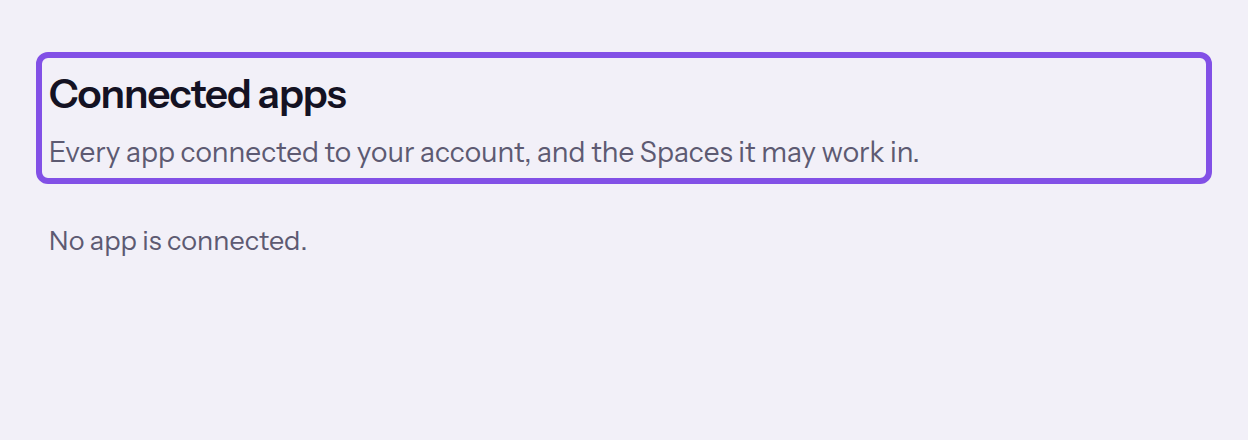
The header of the connected applications page. -
Check the cards
Each connection is a card, newest first. It shows the application, connection status and Spaces.
You see every connection for your account, including ended ones and who ended them.
Check the connection status
What do the statuses mean?
- Active: the connection is active.
- After 60 days without use, the card shows how long the connection has been unused. For one never used, counting starts from the connection date. This does not end the connection.
- Ended by you: you ended the connection.
- Disconnected in the app: the application's sign-in was revoked or expired; you can no longer change the connection.
More questions about connections
What does a connection card show?
- the name supplied by the application, or Unnamed app; TEISENDA never verifies this name
- below it, the host to which sign-in returned
- a badge showing the connection status
- the connection date and last-use date, or not used yet, in your personal date format and time zone
- under Spaces, the connection's Spaces with names and Space IDs, or No Space
- Also applies to Spaces you join later. if the connection also applies to Spaces you join later
What does the last-use date mean?
It changes with each application request carrying a sign-in: even when the application fetches the tool list after connecting, with whoami and with every tool call, including those TEISENDA rejects. It updates at most once every five minutes. It does not mean a tool ran, so not used yet usually disappears soon after connecting.
Which Spaces does the card show, and why is an application listed more than once?
Even an ended connection shows Spaces: those it would apply to today, not those at the time it ended. A Space you have left is absent. A Space the Connector treats as blocked appears like any other, without a marker. Connecting the same application again creates another connection without ending the earlier one.
Change a connection's Spaces
Note
The connection belongs to you and has not ended. You can still change a connection marked as unused.
-
Open Space selection
Click Change Spaces on the connection card.
-
Choose the Spaces
Tick the Spaces where the application should work. Also for Spaces I join later determines whether the connection also applies to Spaces you join later.
-
Save the selection
Click Save. Cancel discards the selection.
Your selection applies from the next tool call. whoami and the tool list may still show the previous state for up to a minute.
Good to know
- A connection needs at least one Space or the option for future Spaces.
- If the future-Spaces option remains enabled, it counts from this change: a Space you deselect now does not return automatically.
- You can choose only Spaces you currently belong to that are confirmed and not scheduled for deletion.
- If you leave a Space or someone removes you, it drops out of all your connections; the connections themselves remain.
If something goes wrong
Select at least one Space.
No Space is ticked and the future-Spaces option is off. Save is disabled. Tick at least one Space or the option. To stop the application working in any Space, end the connection instead.
The selection could not be saved.
The app did not accept the selection: the connection is not yours, is unknown or has since ended, or a selected Space is no longer one you belong to. The app does not say which reason applies; nothing changed. Reload the page and try again.
End a connection
Warning
One click ends the connection immediately, without a dialog or second confirmation. You cannot undo this.
Note
The connection belongs to you and has not ended. You can also end a connection marked as unused.
-
End the connection
Click End connection on the connection card. The card remains listed with Ended by you and no longer has buttons.
The application can no longer work with your account through this connection. To use it again, connect it again.
If something goes wrong
The connection could not be ended.
The app did not end the connection: it is not yours, is unknown or had already ended. The app does not say which reason applies. Reload the page; a connection that had already ended then shows its badge.
More questions about ending connections
Does the connection end when I remove the Connector in the application?
Also remove the Connector in the application, as explained in the guides for Claude and ChatGPT. Then check the connection in TEISENDA and end it here if needed.