
Understanding hosting
Publish static websites as projects in your Space. Hosting is included in Free and Max. A Space is a shared workspace in the app.
On this page
The list shows every project in a Space
-
Open the project list
Choose Projects in the main navigation. The list shows your projects, newest first.
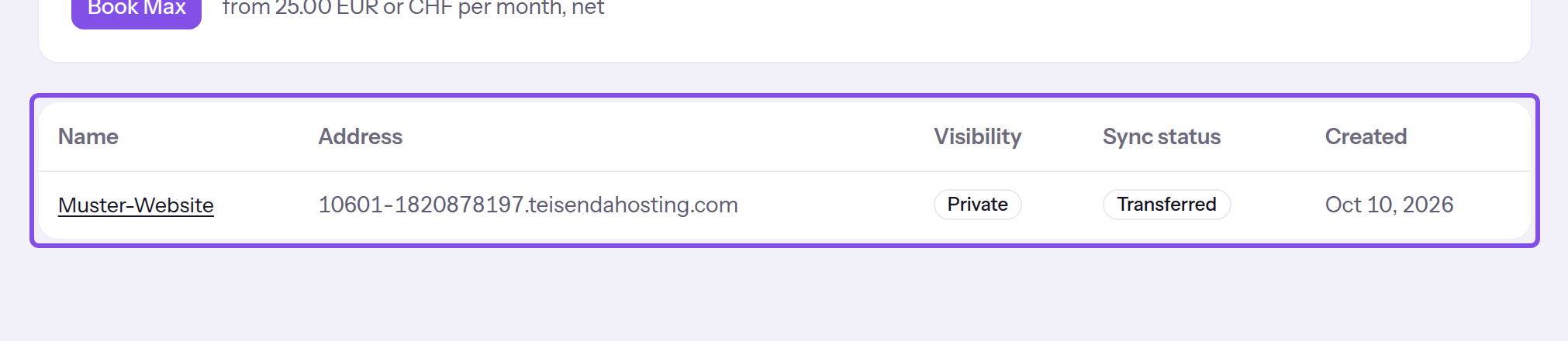
The project table with its five columns. -
Open a project
Click a project's name. Its page opens.
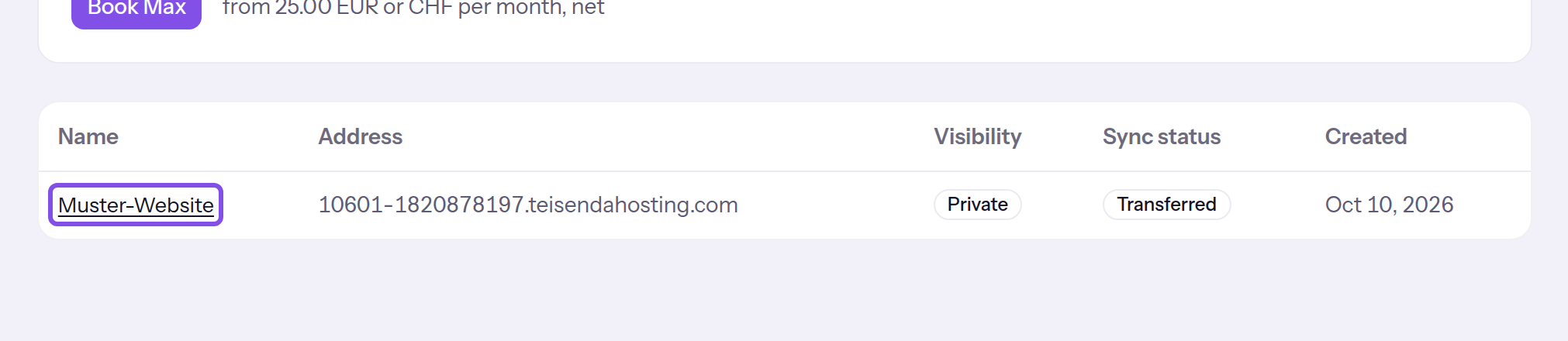
A project's name opens its page.
The project page contains versions, visibility, domains and other settings.
The project page is divided into sections
The header shows the project name, primary domain and published version. Use the copy icon to copy the website address.
| Section | Contents | Guide |
|---|---|---|
| Status on the hosting node | Appears above versions only while the hosting node lacks the current state. | Send the current state again |
| Versions | The upload area and version list. | Upload files, Publish, Versions |
| Visibility | Public or private, and who can view a private website. | Visibility |
| Domains | The project's addresses and their statuses. | Custom domain |
| Redirects | The rules that apply. | Redirects |
| General | The name and creation time. | Rename a project |
| Activity log | Changes to the project. | Log |
| Danger zone | Take the website offline and delete the project. | Take offline, Delete a project |
What do the list's columns mean?
- Name: the project's name. Address: the TEISENDA address.
- Visibility: Publicly visible or Private, plus Offline if the project is offline.
- Sync status: whether the hosting node has the project's current state: Transferred, Being transferred or Not transferred.
- Created: the date the project was created.
What does the usage card show?
Once the Space has a project, Usage on the list shows what it uses: Projects, Custom domains and Storage. Each value is shown against the plan allowance: The usage card shows how close the Space is to a limit.
Why does a project's page not open?
TEISENDA reports that the page does not exist in these cases:
- You do not belong to the Space.
- The address contains something other than a project number where that number should be.
- No project with that number exists in this Space. It may belong to another Space or have been deleted.
Open the correct Space's project list and choose the project there.
Your role determines what you may do in hosting
Owner, Administrator and User can view and change projects. Read-only can read project pages and the log.
Good to know
- With any role, you can open a private website if it is shared with you or everyone in the Space, or you created the project. Your role does not determine this: Visibility.
What is absent for Read-only?
The list has no create button. The project page has no upload area, version or domain actions, redirect-edit button, rename field or Danger zone section; visibility appears as text.
Terms you need
What is a project?
A project is a website in a Space. Create it with just a name; TEISENDA assigns a project number and TEISENDA address, and the project starts private. It is static: a set of files the hosting node serves as they are. A project belongs to exactly one Space and cannot be moved to another. See Create a project.
What is the TEISENDA address?
The TEISENDA address is the address TEISENDA gives every project: <Projektnummer>-<Space-ID>.teisendahosting.com. It has Automatic address in the project's address table. It is created with the project, does not change when renamed and works without a DNS record. It is the primary domain until you choose a custom one, and cannot be removed.
What is a version, and what is a draft?
A version contains an uploaded archive's files. A draft (Open) still accepts files; you can publish a completed version (Ready). At most one version per project is published (Published). For retained versions and backups, see Versions.
What is a publication?
A publication is a version's first publication; the app calls it Deployments. The plan limits a Space's total: 3 on Free, no limit on Max. Uploads do not count, nor does republishing a previously published version. See Publish.
What is a backup?
A backup is a completed version you mark to retain. It does not count towards the versions the plan retains per project. A project can have 1 backup on Free or 3 on Max. See Keep a version as a backup.
What do public and private mean?
New projects are private: Only Space members you grant access to can visit after signing in to TEISENDA. Anyone who knows a public website’s address can visit without signing in. You cannot grant private access to people outside the Space. See Visibility to change access.
What is a custom domain, and what is the primary domain?
A custom domain is your hostname that leads to a project in addition to its TEISENDA address. A hostname can belong to only one project across all Spaces. The primary domain is the one address where TEISENDA serves the project's website; every other address redirects to it. Unless you choose otherwise, it is the TEISENDA address. See Custom domain.
What is a redirect?
A redirect sends a visitor from one website path to another path or address. A project has an ordered rule list. For each request, the first matching rule wins, and rules take priority over files. See Redirects.
What does offline mean?
Offline is a project switch. While enabled, the hosting node responds with a neutral page at every project address. Versions, custom domains, redirects and settings remain. The project page and list mark such a project with Offline. See Take offline.
What is the hosting node?
The hosting node is the server that stores and serves everything hosted at TEISENDA: each version's files, websites at TEISENDA and custom addresses, and custom domain certificates. Only the app writes to it: it saves each change first, then sends it to the node. The node knows neither customers nor plans; its limits are technical and the same for every plan: Limits.
How does the hosting node answer a website request?
HTTP requests switch to HTTPS and the primary domain. An offline project shows a neutral page; other project addresses redirect to the primary domain, keeping the path and query. Private websites require valid sign-in before applying your redirects and serving files. Pages are also accessible without .html. Missing files show the project-wide 404.html in the root folder (at most 1 MB), or the default error page.
Send the current state again
Note
You have Owner, Administrator or User in the Space.
The hosting node lacks the project's current state. Only then does the project page show this section.
-
Click the send button
Under Status on the hosting node, click Transfer again. On success, State transferred appears and the notice disappears; otherwise it states the reason.
Visitors now see the published version, visibility, addresses and redirects shown on the project page.
Good to know
- If sending fails, TEISENDA does not undo the change: it stays saved, and visitors see the previous state until sending succeeds. The change's message states this, for example Published, but not yet transferred to the hosting node.
- The app automatically retries missed transfers about every five minutes; nothing is lost.
If sending fails
The hosting node isn't responding.
The hosting node did not respond within 10 seconds. Click Transfer again again in a few minutes, or wait for the app to retry.
The hosting node rejected the app's sign-in.
The hosting node rejected the app's sign-in. You cannot change this in the interface. Contact support.
The hosting node is currently undergoing maintenance.
The hosting node is undergoing maintenance and currently accepts no changes. Try again later. The app retries automatically.
The hosting node has no storage space left.
The hosting node has no storage space left. Contact support.
The hosting node assigns addresses in a different zone than the app.
On a project's first transfer: the hosting node assigns addresses in a zone different from what the app expects. The project's address would never be served. Contact support.
The project number was already assigned once on the hosting node.
The hosting node previously had a project with this number and does not accept a number twice. The project cannot be transferred with this number. Contact support.
On the hosting node, the project belongs to a different Space.
The project belongs to another Space on the hosting node. Contact support.
The hosting node rejected the state.
The hosting node rejected the state for another reason, or its response could not be read. Click Transfer again. If the message remains, contact support.
The log shows who changed what in the project
Anyone who can view the project can read its log, including Read-only.
-
Read the entries
Under Activity log, read the 50 newest changes. Each entry states the action, person, channel and time.
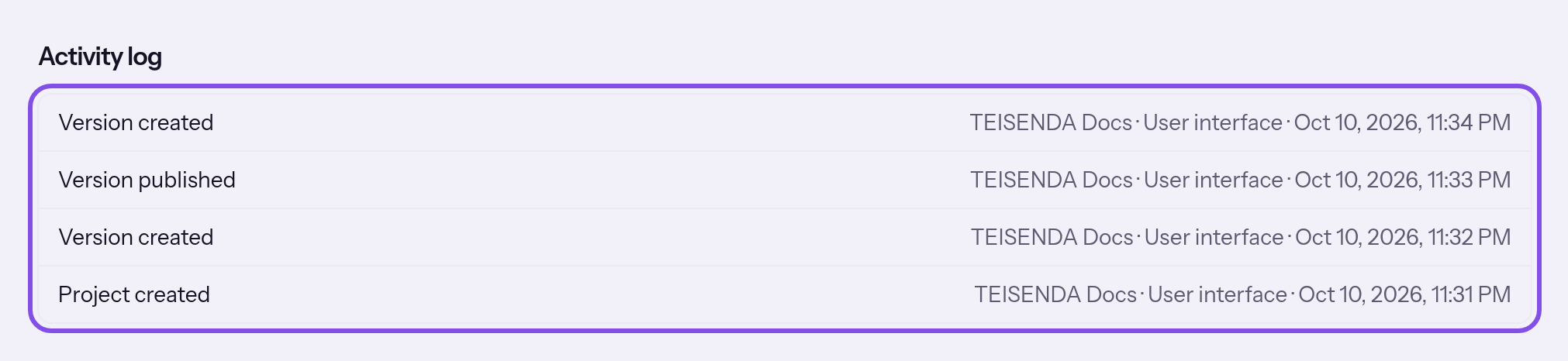
A project's log, newest entry first.
Good to know
- An entry does not identify the version, domain or person a change affected. Entries older than the 50 displayed are unavailable in the interface; it has no search, filters or export.
- For other usage information TEISENDA records, see Data flowing through the Connector.
What do person and channel show?
The person is the member's name. For someone who no longer belongs to the Space, it shows Former member; if no person acted, No one (automatic). The channel is User interface for the app interface, Connected app for an application using the Connector, or Automatic for actions the app performed automatically.
These messages may appear for any change
You don't have permission for that.
TEISENDA rejected the change: you have Read-only or no longer belong to the Space. The interface hides controls for a read-only role, so the message appears only if your role changed after the page loaded. Ask a member with Owner or Administrator for User or higher, then reload.
The project no longer exists.
The project, version or domain no longer exists in the Space, for example because someone else deleted it. The message always names the project, even if a version or domain is missing. Reload or return to the project list.
That did not work. Please try again.
The request stopped with an error for which the interface has no specific message, for example a lost app connection. Reload to see what was saved, then try again.