
View and end active sessions
Check which browsers are signed in to your account and end unfamiliar sessions.
On this page
View and end your sessions
-
Check the list
In your personal settings, open Security. Active sessions shows the browser, operating system and sign-in time; this device marks your current session.
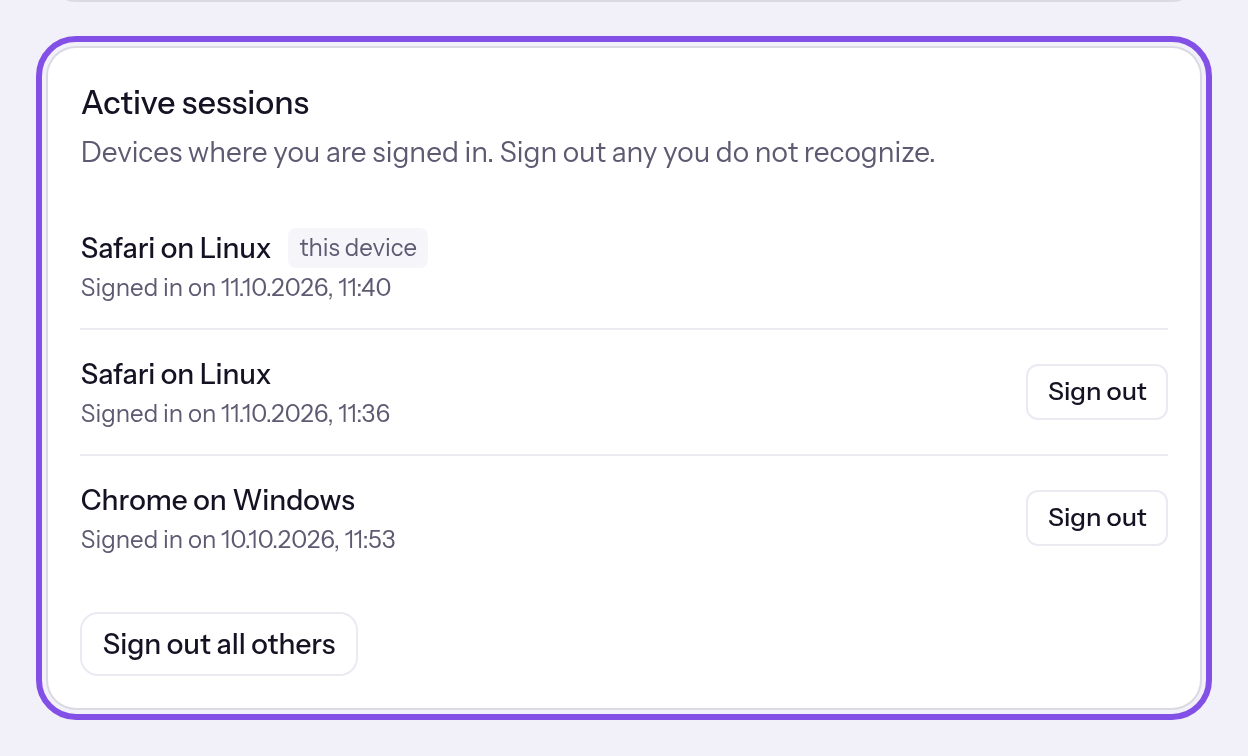
The active sessions card. -
End sessions you do not recognise
Click Sign out for an unfamiliar session, or Sign out all others for all others. Both end the relevant sessions without confirmation.
The ended sessions disappear: the next page requiring sign-in in those browsers takes them to the sign-in page.
Good to know
- You cannot end your current session here; instead, sign out.
- Sign out all others appears below the list only when at least one other session exists.
- The list shows no IP address or location.
- A session lasts up to seven days after sign-in. After that, sign in again.
- Changing your password ends all sessions; for other actions, see What is a session and what ends it?
If something goes wrong
This session is no longer active.
The session no longer exists or does not belong to your account, for example because it ended elsewhere. Reload the page.