
Set up a custom domain
Connect your domain to the project and choose it as the primary domain if needed.
On this page
Note
You need Owner, Administrator or User in the Space. A Space is a shared workspace in the app.
You can change the domain's DNS records with your DNS provider. The domain does not lead to another project yet.
The project has fewer than 19 custom domains, and the plan allows another.
Add a custom domain
-
Open the wizard
In Domains on the project page, click Add domain.
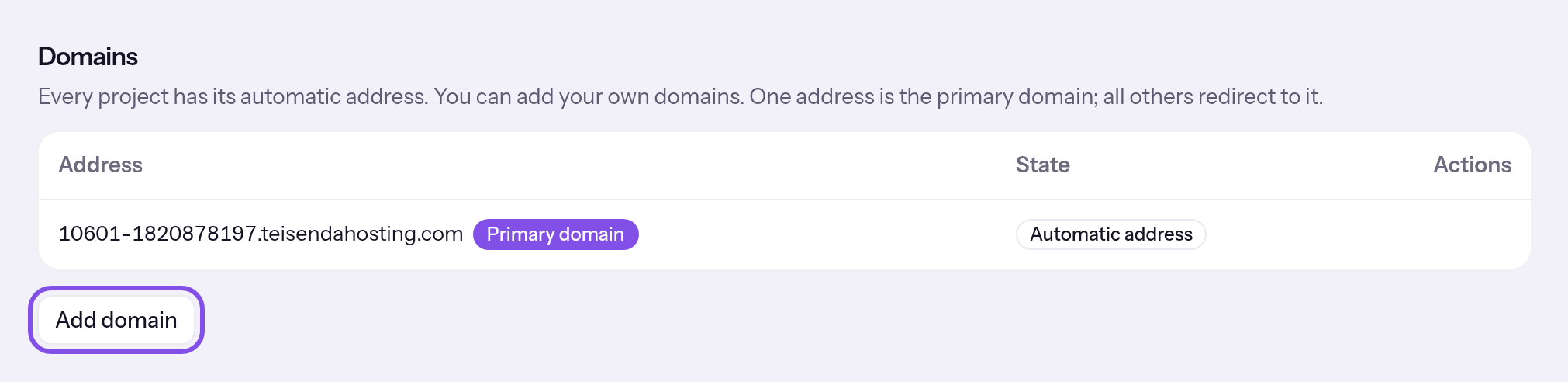
The add button. -
Enter the domain
Under Which domain should lead to this project?, enter the hostname, for example
www.example.com, withouthttps://or a path. Continue already adds the domain; it initially shows Pending.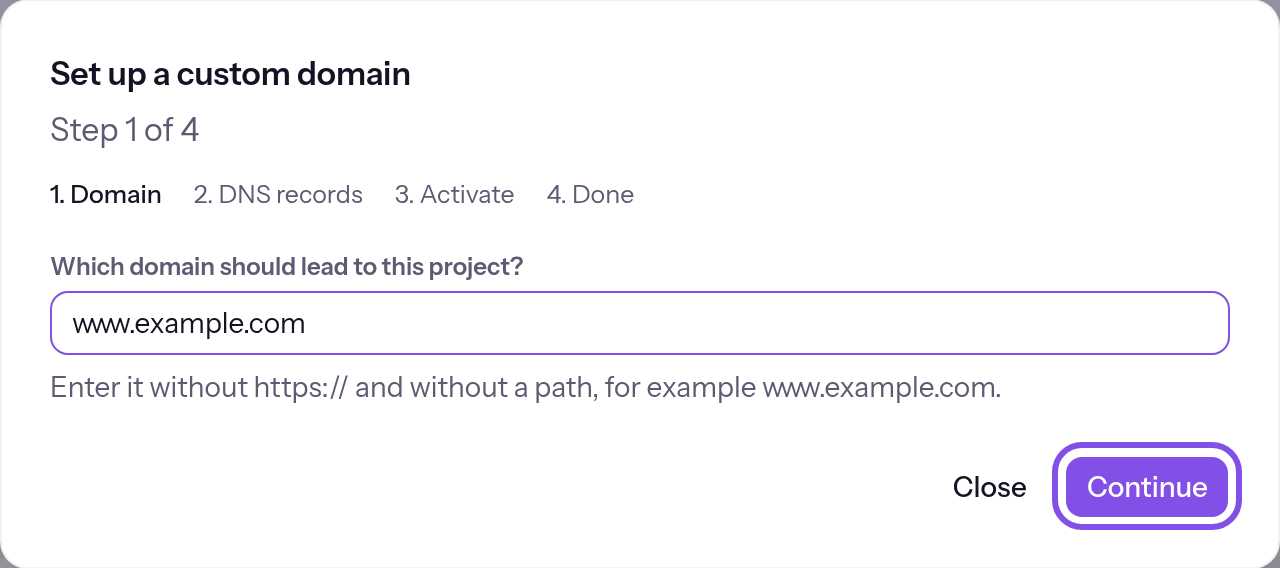
The wizard's first step. -
Set DNS records
Copy the wizard's DNS records, including type, name and value, to your DNS provider. You need CNAME or A, plus TXT; set AAAA if the wizard specifies it.
-
Check DNS
Click Check DNS. With The DNS isn't correct yet., correct the listed problems, wait a few minutes and click Check again.
-
Activate the domain
Click Activate; the hosting node obtains a certificate in the background. Then click Refresh status. Once the node serves the domain, the wizard moves to the final step.
-
Close the wizard
In the final step, click Close, or use Set as primary domain to make the domain primary here.
The table shows Active and Certificate valid. The domain responds over HTTPS and redirects to the existing primary domain until you choose it as primary.
Good to know
- A domain and its name with
wwware two hostnames. Add each separately. - A hostname belongs to at most one project across all Spaces.
- A project has at most 19 custom domains. A Space has as many as its plan allows projects: 1 on Free, 10 on Max, plus 5 per package. At a limit, the add button is disabled and a row below states why.
If something goes wrong
That isn't a valid hostname. Enter it without https:// and without a path.
The value is not a valid hostname: it contains https://, a path, a space or other disallowed characters, has only one part, is an IP address or exceeds 253 characters. Enter only the hostname, for example www.example.com.
This domain is blocked.
The hostname is in a zone no project may use: teisenda.com or teisendapages.com. Use your own domain.
Addresses in this zone are assigned by TEISENDA itself.
The hostname is in the teisendahosting.com zone where TEISENDA assigns TEISENDA addresses. Use your own domain; the project's TEISENDA address needs no entry.
This domain already leads to a project.
The domain already leads to a project: this one, another in the Space, another Space's project, or one known to the hosting node. It stays assigned until removed from the other project. After project deletion, it becomes available when the node confirms deletion. Remove it there first or use another hostname.
“More than … custom domains are not allowed.”
The project already has 19 custom domains. Remove one you no longer need.
“This Space's plan allows no more custom domains. Added: … of ….”
The Space has as many custom domains as its plan allows projects, counted across all projects. TEISENDA added nothing. Remove a domain. A larger plan allows more projects and therefore domains: Plans.
The DNS isn't correct yet.
- After checking in the wizard: the domain's DNS is not correct yet. The rows below show what the hosting node found. Correct records with your DNS provider, wait a few minutes and click Check again.
- In the address table below the domain status, and at the top of the DNS-record step, as the saved result of an activation attempt: DNS was incorrect at that time, so the node requested no certificate. Open the wizard, check DNS and activate again.
The hosting node isn't responding.
- The wizard requested the records, but the hosting node did not respond. The wizard asks only once. Click Check DNS to ask the node again.
- The node did not respond when adding, checking, activating or fetching status. Retry the step in a few minutes.
The hosting node rejected the state.
Adding, checking, activating or fetching status did not reach the hosting node, or the node rejected it. After adding, the domain is still saved in TEISENDA. Another sentence may replace this one: If sending fails. Retry the step in a few minutes.
For messages such as You don't have permission for that., see Understanding hosting.
These messages concern DNS and certificates
They appear with The DNS isn't correct yet. in the wizard and address table.
There is no DNS record for the domain.
The domain has no DNS record pointing anywhere. Set the CNAME or A record shown by the wizard.
The A record is missing.
The A record expected by the hosting node is missing. Set it to the shown value, or use the CNAME record instead.
There is another A record that points elsewhere.
Besides the correct A record, another points elsewhere. Remove the other A record with your DNS provider.
The domain points to a different server.
The domain points to a server other than the hosting node. Replace its CNAME or A record with the one shown.
There is an AAAA record that points elsewhere.
The domain has an AAAA record pointing elsewhere; IPv6 visitors would not reach the website. Remove it, or set it to the shown value if the wizard gives one.
A CAA record forbids issuing the certificate.
A CAA record prevents the hosting node's certificate authority from issuing a certificate. Change or remove it with your DNS provider to allow Let’s Encrypt.
Proof of ownership is missing: the TXT record isn't set.
Ownership proof is missing: the TXT record is absent or has a different value. Set the name and value shown in Proof of ownership.
The domain's DNS isn't responding.
The domain's DNS does not respond, so the node could not check anything. Work with your DNS provider to make the domain resolve, then check again.
The records haven't arrived everywhere yet. Try again in a few minutes.
The node's two resolvers do not both see the records yet. Wait a few minutes and check again.
The certificate was rejected.
The certificate authority rejected this domain's certificate. Check DNS records, especially CAA, and activate again. If the message remains, contact support.
The hosting node reports a problem with this domain.
The hosting node reports a problem with no specific interface message, such as a node restart interrupting certificate issuance. Check and activate again. The app also restarts interrupted issuance automatically.
More questions about adding a domain
Can I close the wizard and continue later?
Yes, at any step. A domain not yet active has Continue setup in its row, which reopens the wizard. You cannot return to an earlier step.
Which DNS records does the wizard show?
- Address: a CNAME and an A record, choose one, plus AAAA if specified by the node. They point the domain to the hosting node.
- Proof of ownership: a TXT record with the name
_teisenda-hosting.<Domain>and valueteisenda-hosting=<Nachweis>. - The hosting node checks DNS with two public resolvers, and both must see the same: the correct address, no second A record and no AAAA pointing elsewhere. A CAA record must not prohibit the certificate.
Why does my domain stay Pending?
On activation, the hosting node obtains certificates one at a time. Other domains wait as Pending until their turn. The node renews certificates itself.
Check domain status
-
Fetch the status
In Domains, click Refresh status; the button appears only if the project has a custom domain.
Status refreshed appears, and the table shows the hosting node's status at that moment.
More questions about status
What do the table's indicators mean?
- Automatic address: the project's TEISENDA address. Primary domain: the address where TEISENDA serves the website.
- Pending: the domain is added to the project, but the hosting node does not serve it yet because it has no certificate. Every domain starts this way.
- Active: The hosting node considers the domain active. The separate certificate indicator shows whether its certificate is valid. An active domain can also report a missing certificate; the app then retries issuance during automatic reconciliation.
- Failed with Certificate rejected: the last certificate attempt failed; the reason appears below.
- The table can lag between refreshes. While a domain is not active or its certificate is not valid, the app fetches status automatically about every five minutes.
- The certificate has No certificate yet, Certificate being issued, Certificate valid or Certificate rejected.
Set the primary domain
TEISENDA serves the website at the primary domain; every other project address redirects there. The custom domain is active (Active); you can always choose the TEISENDA address.
-
Click the button in the domain's row
Under Domains, click Set as primary domain for the active domain. Primary domain moves to it without confirmation.
The project header shows the new address, and the TEISENDA address now redirects there too.
If something goes wrong
Only possible once the domain is active.
The domain is not active yet. The row menu's entry is disabled with Only possible once the domain is active. on a second line. Finish setup first using Continue setup in its row.
Changed, but not yet transferred to the hosting node
This is not a rejection: the change is saved in TEISENDA, but the hosting node has not accepted it. Visitors still see the previous state. Wait about five minutes or send it yourself: Send the current state again.
For messages such as You don't have permission for that., see Understanding hosting.
More questions about the primary domain
How do I make the TEISENDA address primary again?
While a custom domain is primary, the TEISENDA address's row has Set as primary domain. A project has exactly one primary domain.
What happens if the primary domain loses its certificate?
It stays selected in the app. The hosting node redirects to another address it serves until the certificate returns.
Remove a custom domain
You cannot remove the TEISENDA address.
-
Choose the remove entry
Open the domain row's three-dot menu and choose Remove.
-
Confirm removal
Click Remove in the confirmation. Cancel closes it without removing anything.
The domain is removed; if it was primary, the TEISENDA address applies again. Remove DNS records with your provider yourself.
More questions about removal
Can I reuse a removed hostname?
Yes. The hostname is available and can be added to this or another project. It starts afresh, with new ownership proof and a new certificate.