
Sign in and sign out
Sign in, sign out and verify your identity when needed.
On this page
Sign in with an email address and password, or through Google or Microsoft. With two factors enabled, a code follows the password.
Note
Your account has a password. An account created through Google or Microsoft has none until you set one.
Your account is not scheduled for deletion; otherwise, restore it first.
Sign in with an email address and password
-
Open the sign-in page
-
Enter your address and password
Enter your account's email address in Email and your password in Password.
-
Sign in
Click Sign in. If you have lost your password, click Forgot password? instead; for the next steps, see Reset your password.
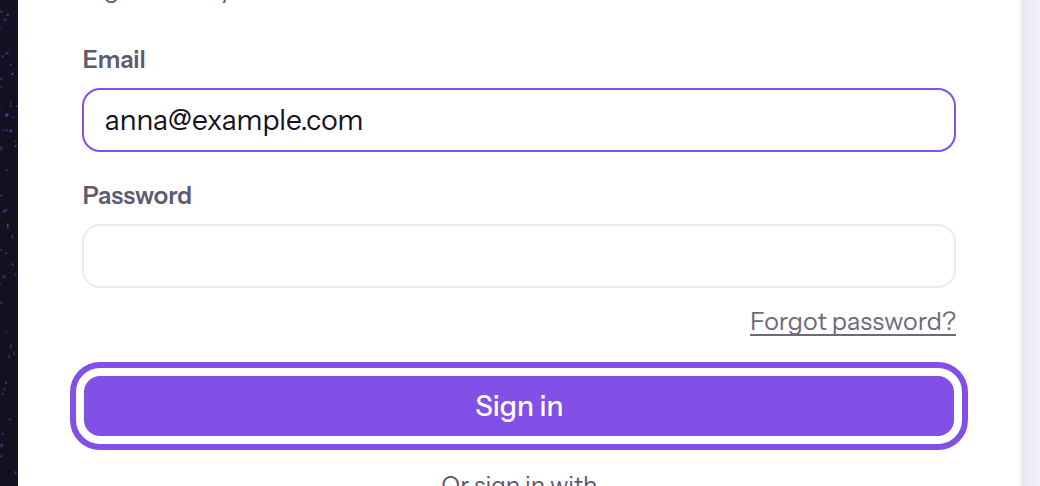
The sign-in form with its sign-in button.
If two-factor sign-in is disabled, you are signed in in this browser; otherwise, enter the second factor.
If something goes wrong
Incorrect email or password.
The email address or password is incorrect; the message does not say which. Check both. If you have lost your password, reset it. An account scheduled for deletion may also receive this message; in that case, restore it using the link in the email.
Email is required., The address needs an @ — for example name@company.com or Password is required.
A field is empty or the value is not an email address. The message appears below the field; enter the full address and password.
Too many attempts. Please try again in … minutes.
There have been too many password sign-in attempts in the current quarter-hour: 20 for the same address or 30 from the same IP address. Successful sign-ins also count. Wait for the stated number of minutes, then sign in again; nobody needs to unlock anything.
More questions about signing in
Where does the app take me after sign-in?
A Space is a shared workspace in the app. A sign-in started from an app page returns to that page. Otherwise, the browser opens the home address of the Space you last chose or, if there is none, the first Space you joined.
In two cases, the app takes you elsewhere: if your registration is unconfirmed and you have no confirmed Space, you go to /verify-pending, as explained in The confirmation email does not arrive. If you do not belong to any Space and no confirmation is pending, you go to /settings/profile, where a button lets you create a Space.
How long must I wait after “Too many attempts”?
The message gives the minutes until the current window ends; counting then starts again. Most limits count every attempt; the second sign-in step, identity dialog and disabling of the second factor count failed attempts only.
Enter the second factor
With two-factor sign-in enabled, complete sign-in using a code from your authenticator app or a backup code.
Note
TEISENDA has just accepted your email address and password, and your account has two-factor sign-in enabled.
-
Enter the code
Enter your authenticator app's current six-digit code under Code. If the app is unavailable, choose Use a backup code instead and enter a backup code; if you have neither, request a reset.
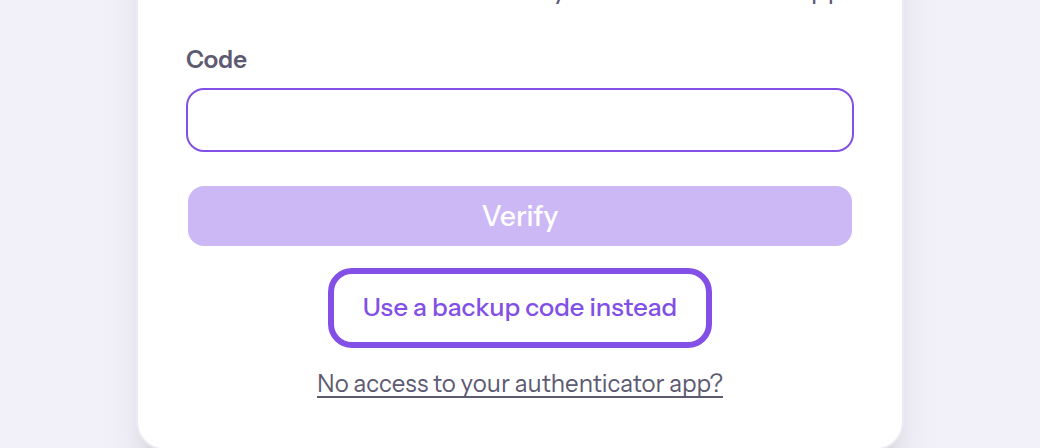
Switch here to sign in with a backup code. -
Confirm the code
Click Verify. If the code is correct, your session starts.
You are signed in.
If something goes wrong
The code is invalid or has expired.
The code or backup code is incorrect or expired. Enter the code your authenticator app currently shows. If the app keeps rejecting it, start again on the sign-in page.
Too many failed attempts. Please try again in … minutes.
There have been too many incorrect codes in the current ten-minute window: 5 for your account or 10 from the same IP address. While blocked, TEISENDA rejects even a correct code. Wait for the stated number of minutes, then enter a current code.
Sign in through Google or Microsoft
Use a provider to sign in to an account that already exists.
Note
The provider is configured at TEISENDA; otherwise its button is absent.
Your Google or Microsoft account's address already has a confirmed TEISENDA account that is not scheduled for deletion.
-
Choose the provider
On the sign-in page, click Sign in with Google or Sign in with Microsoft under Or sign in with. The browser opens the provider's sign-in page.
-
Sign in with the provider
If successful, the browser returns with you signed in. Otherwise, a message appears below the buttons.
You are signed in. If your account was created with a password, the provider is now linked to it, and both sign-in methods work.
If something goes wrong
No access for this email address. Please ask to be invited.
Your provider account's address has no TEISENDA account; the sign-in page does not register anyone. Sign up first: use the provider buttons on the sign-up page while registration is open, or accept an invitation to a Space.
Sign-in was cancelled.
You declined or cancelled with the provider. Click its button again.
Your account did not provide an email address. Please use an account with an email address on file, or sign in another way.
The provider supplied no email address for the account. Use a provider account with an email address, or sign in with an email address and password.
There's an unfinished registration for this address. Please complete it via the email link or try again later.
The address belongs to an unconfirmed password registration, so TEISENDA does not link the provider to it. Confirm that registration using the link in its email, then sign in again.
Sign out
-
Choose the sign-out entry in the menu behind your initials
Click the round button with your initials at the right end of the header, then Sign out.
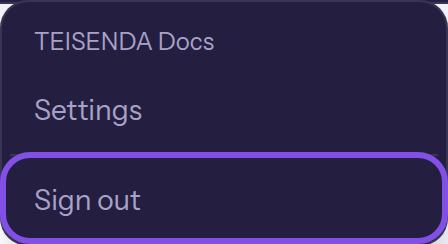
The sign-out entry in the menu behind your initials.
This browser's session ends and the sign-in page opens. Sign-ins in other browsers remain; to end them, see View and end active sessions.
More questions about signing out
What is a session and what ends it?
Each sign-in to your account in a browser creates a session; signing out ends it. Your personal settings list your sessions; to end them there, see View and end active sessions. A session lasts up to seven days after sign-in. After that, sign in again.
These actions end all your account's sessions at once, including the one you use to perform them:
- changing your password
- setting a new password using a reset link
- confirming a new email address
- scheduling your account for deletion
- a reset of your second factor confirmed by a member with the Owner or Administrator role
Verify your identity when the app asks
Before these actions, the app may require identity verification:
- Request a new email address
- Delete your own account
- Confirm a second-factor reset for someone else
- Delete a Space
Note
Your sign-in or last verification is older than 10 minutes; otherwise the dialog does not appear.
Your account has a password or two-factor sign-in. Otherwise, set a password first.
-
Enter your code or password
In the Confirm your identity dialog, enter your current authenticator code under 6-digit code. Without two factors, enter your password under Password; use Use password instead to switch to a password.
-
Confirm verification
Click Confirm. If verification succeeds, the dialog closes and the app retries the pending action. Cancel closes the dialog without performing the action.
After successful verification, the app performs the pending action. Verification lasts for 10 minutes in this session.
Good to know
- The dialog does not accept a backup code.
If something goes wrong
The code or password is incorrect.
The code or password is incorrect. Enter the current code from your authenticator app or your password.
Too many failed attempts. Please try again in … minutes.
There have been 5 incorrect entries in this session during the current ten-minute window. While blocked, TEISENDA rejects even a correct entry. Wait for the stated number of minutes, then try again.
This factor is not available.
The verification method you submitted is not available for your account: a password for an account without one, or a code while two-factor sign-in is disabled. Use the other method; an account without a password must set one first.