
Roles in a Space
Compare the four roles and change a member's role.
On this page
Your role determines what you can do in the Space.
What each role permits
The ranking is Owner, Administrator, User, Read-only. Permissions are fixed; your role can differ in each Space.
| Space permissions | Owner | Administrator | User | Read-only |
|---|---|---|---|---|
| View general settings | yes | yes | yes, fields locked | yes, fields locked |
| Change the name and time zone, set up the Space when first opened | yes | yes | no | no |
| Open User management | yes | yes | no | no |
| Invite | yes, with any of the four roles | yes, with Administrator, User or Read-only | no | no |
| Resend an invitation | yes | yes, if it has Administrator, User or Read-only | no | no |
| Revoke an invitation | yes | yes, any invitation | no | no |
| Change another member's role | yes, for any other member and to any of the four roles | yes, for members with Administrator, User or Read-only, and to any of these three roles | no | no |
| Remove another member | yes, including other members with Owner | yes, members with Administrator, User or Read-only | no | no |
| Create, rename or delete teams and choose their members | yes | yes | no | no |
| View teams | yes, under Teams | yes, under Teams | only their names in the website sharing dialog | at most a team's name, if a website is shared with that exact team |
| Belong to a team | yes | yes | yes | yes |
| Manage the Space's billing | yes | yes | no; can view the plan, subscription, usage and purchased packages | same as User |
| View the project list, every project page and the hosting log | yes | yes | yes | yes |
| Make changes in hosting | yes | yes | yes | no |
| Call hosting tools through the Connector | yes, all of them | yes, all of them | yes, all of them | only five of the read-only tools |
| Leave the Space | yes, unless the only member with this role | yes | yes | yes |
| Delete the Space | yes, this role only | no | no | no |
For details, see Spaces, Plans, Hosting and Connector permissions. Private websites also depend on visibility.
Your rank determines whom you can manage
As Owner or Administrator, you manage other members up to your own rank. You cannot assign a higher role or change your own membership.
The role cannot rank above yours when inviting or resending either. However, Administrator can revoke any pending invitation.
A Space always has at least one member with Owner
- The only member with Owner cannot leave the Space; the button is disabled. Nobody can remove them or give them a lower role.
- Give another member Owner before you leave the Space.
- Multiple Owner members can change other owners' roles or remove them; the last owner remains protected.
Change a member's role
Note
You have Owner or Administrator in the Space, and it has been set up. Until then, the setup dialog covers every page.
The member is someone else; nobody can change their own role.
Neither the current nor new role ranks above yours: as Administrator, you cannot change a member with Owner or assign that role.
-
Open the member's menu
Open the member list. In the person's row, choose the three-dot menu and Change role.
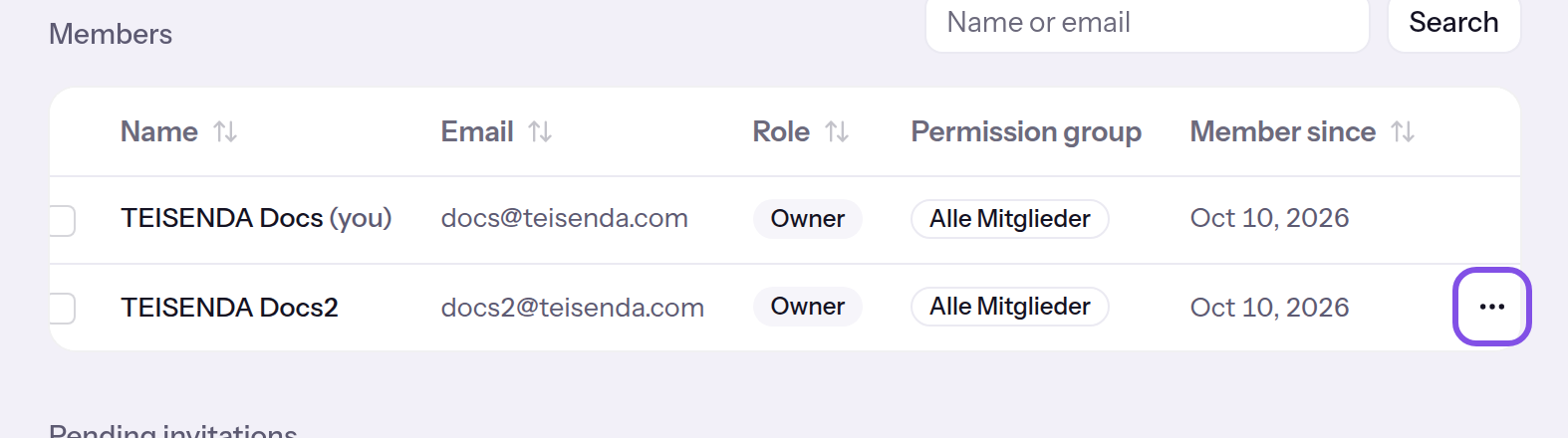
The three-dot button is at the end of a member's row. -
Choose the new role
In the dialog, click Role and choose the new role, for example Read-only. The list shows only roles you may assign.
-
Save the role
Click Save. Cancel closes the dialog without changing anything.
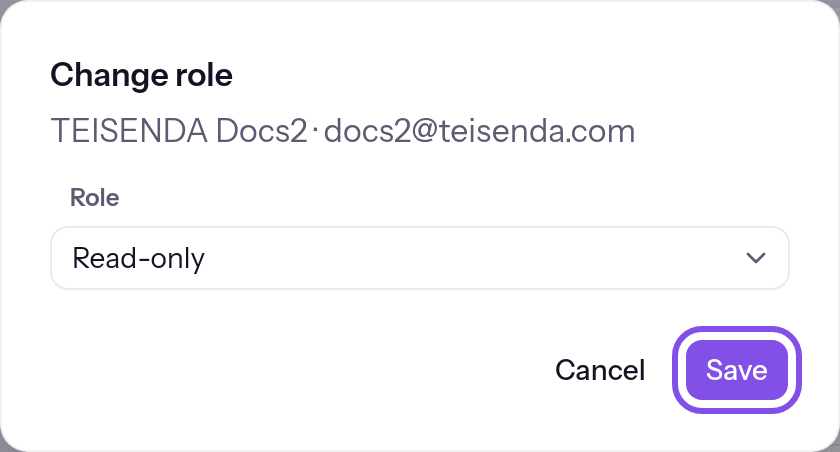
The new role is selected; the save button is highlighted.
The list shows the new role; it applies from the member's next request. They stay signed in and receive no notification.
Good to know
- The three-dot button appears only for members you may change: not in your own row or for members whose role ranks above yours.
- Pending invitations keep their role.
If something goes wrong
You cannot change or remove your own membership.
The member is you: clicking your name in the list opens the same dialog, but TEISENDA rejects saving. Only another member allowed to change your role can do so: as Owner, ask another member with that role; as Administrator, ask Owner or Administrator.
You are not allowed to perform this action.
The current or new role ranks above yours, you do not or no longer have Owner or Administrator, or the request failed for another reason. Reload the page. Anything requiring Owner must be done by a member with that role.
Member not found.
The person no longer belongs to the Space: they left or were removed after the page loaded. Close the dialog and reload the page.