
Name, time zone and Space ID
Find your Space's details and learn which ones you can change.
On this page
A Space is a shared workspace in the app. Its general settings show the display name, Space ID and time zone.
Note
Every role in the Space can view these settings.
Only Owner and Administrator can change the name and time zone.
Open the general settings
-
Click Settings
The entry is at the end of the sidebar. Settings open at their first entry, General.
-
Find the Space's details
The General form shows the display name, Space ID and time zone.
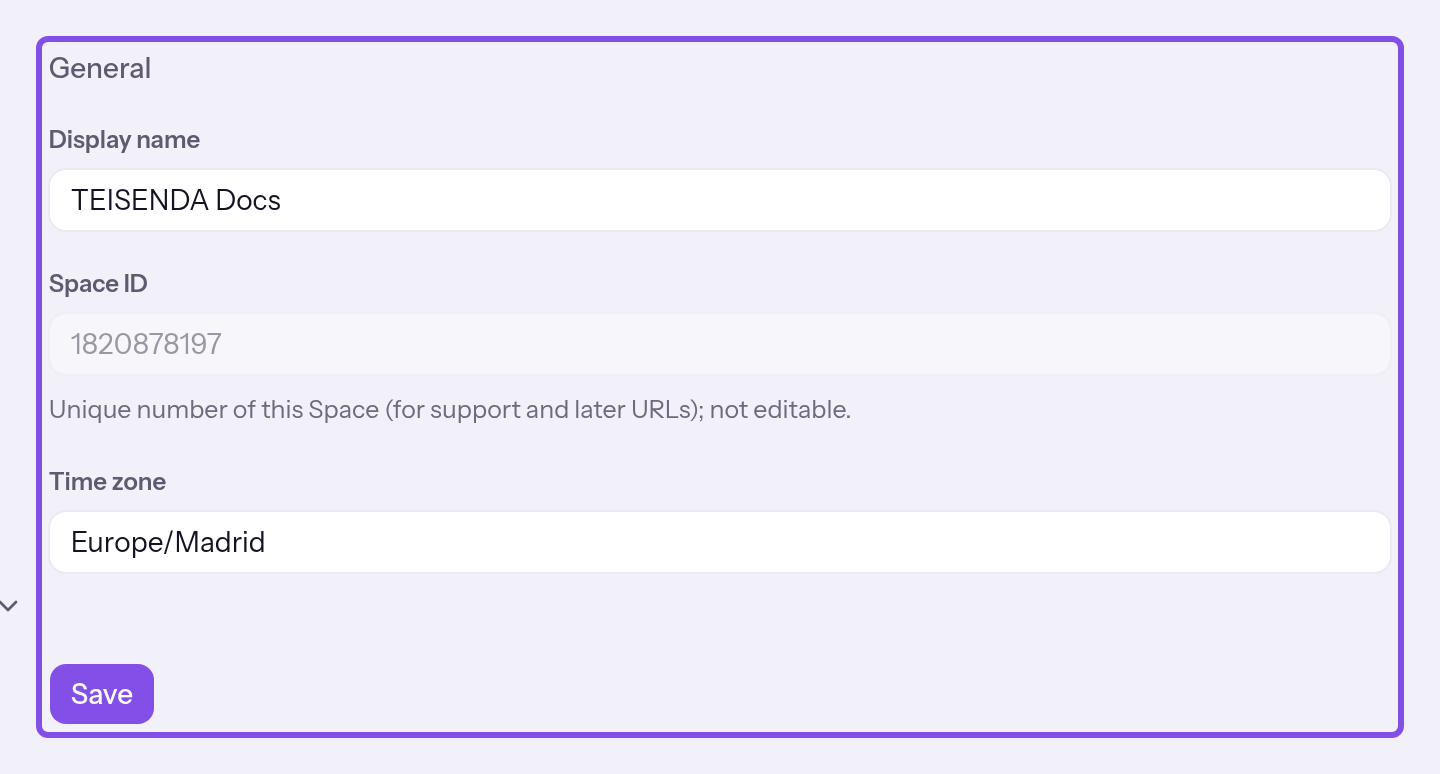
The form with its save button, as seen by Owner and Administrator.
Good to know
- With User or Read-only, you can only view the fields; Only Owners and Administrators can change these settings. appears above them.
- Only Owner sees the Danger zone section at the end of the page with the delete entry; see Delete a Space.
- The profile menu in the header has the same entry; if you do not belong to any Space, it opens
/settings/profile.
More questions about settings
Which entries appear in the settings navigation?
The This Space group starts with General. Next are Members, visible only to Owner or Administrator, and Billing; see the guides to plans and billing. The Personal group contains My profile, Security, My Spaces and Connected apps.
Change the name or time zone
You need the Owner or Administrator role.
-
Enter the name or time zone
Change the name under Display name. To choose another time zone, open Time zone and select an entry; type to search the list.
-
Save the change
Click Save. The Settings saved. confirmation appears briefly.
The name and time zone are saved; the Space ID and addresses stay the same.
Good to know
- With unsaved changes, the browser warns before you close or reload the tab, but not when you move to another page in the app.
- For other places where the name appears, see the display name overview.
If something goes wrong
This information is missing.
The name field is empty or contains only spaces. Enter a name.
You don't have permission to change these settings.
You are no longer Owner or Administrator in this Space. Ask someone with either role to make the change.
Settings could not be saved.
Saving failed for another reason. Try again.
Find the Space ID
Every signed-in member can see the Space ID, regardless of role.
-
Read the Space ID field
Open the general settings. The ten-digit Space ID appears in Space ID; you cannot change it.
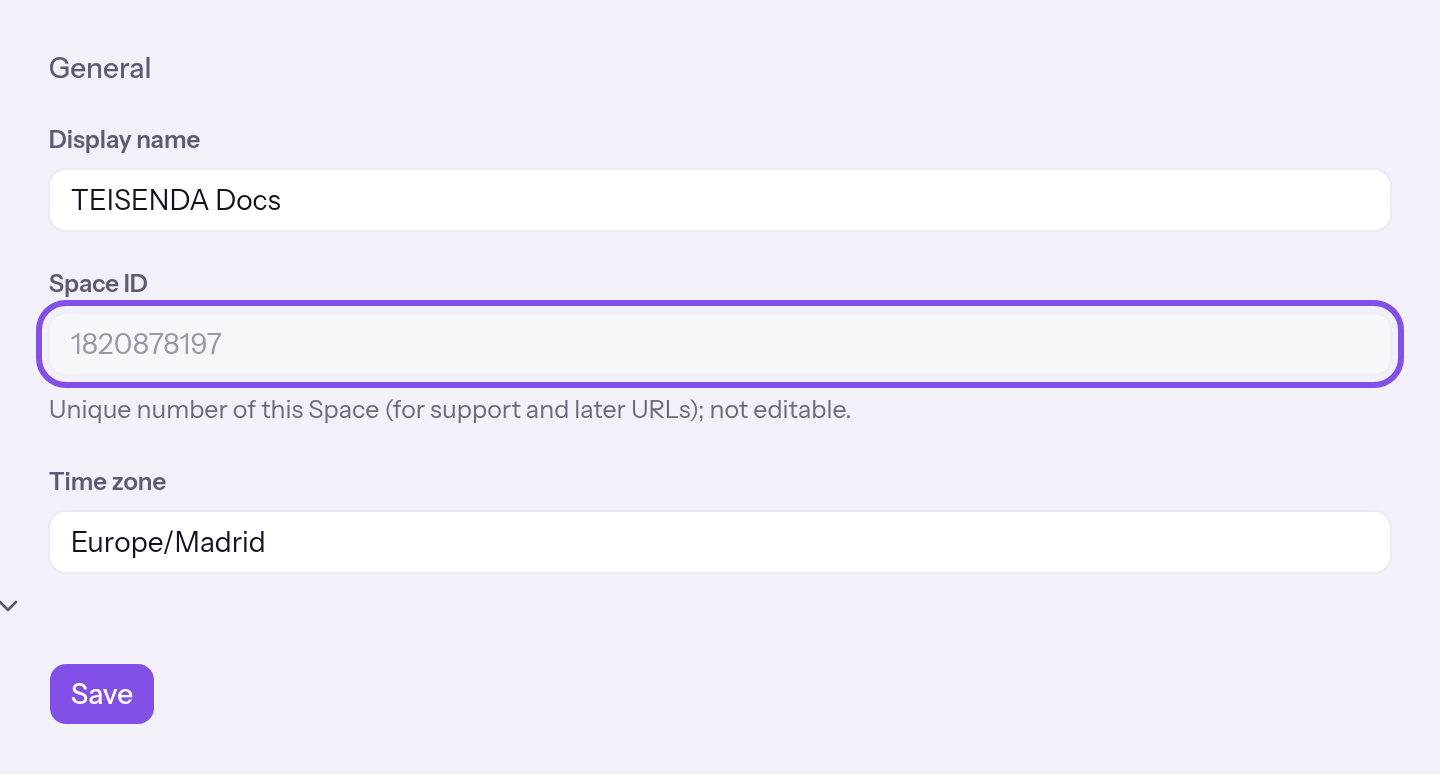
The Space ID field is greyed out; the note appears below it.
You now know the Space ID you must type to confirm when deleting the Space.