
Change your email address
Request a new email address and confirm it using the link sent to that address. The email to your previous address lets you stop the change.
On this page
Note
Your account has a password. If it signs in only through Google or Microsoft, set one first.
The new address has no TEISENDA account, differs from your current address, and its domain is not on the app's list of disposable email providers.
Request the change
-
Open the new-address field
In your personal settings, open My profile and click Change email address below your current address.
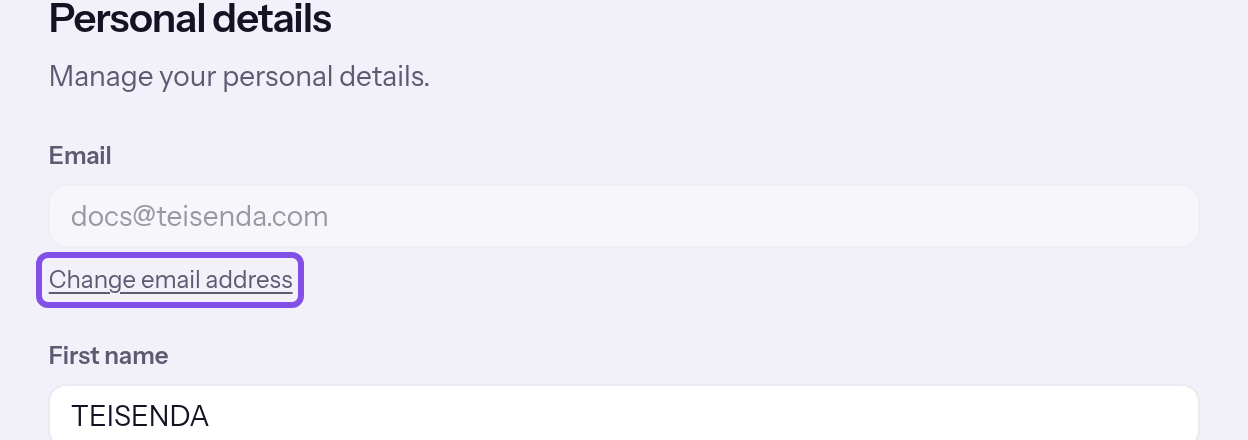
The change-email link below the current address. -
Submit the new address
Enter the new address under New email address and click Send confirmation link. If your sign-in or last identity verification is older than 10 minutes, verify your identity first.
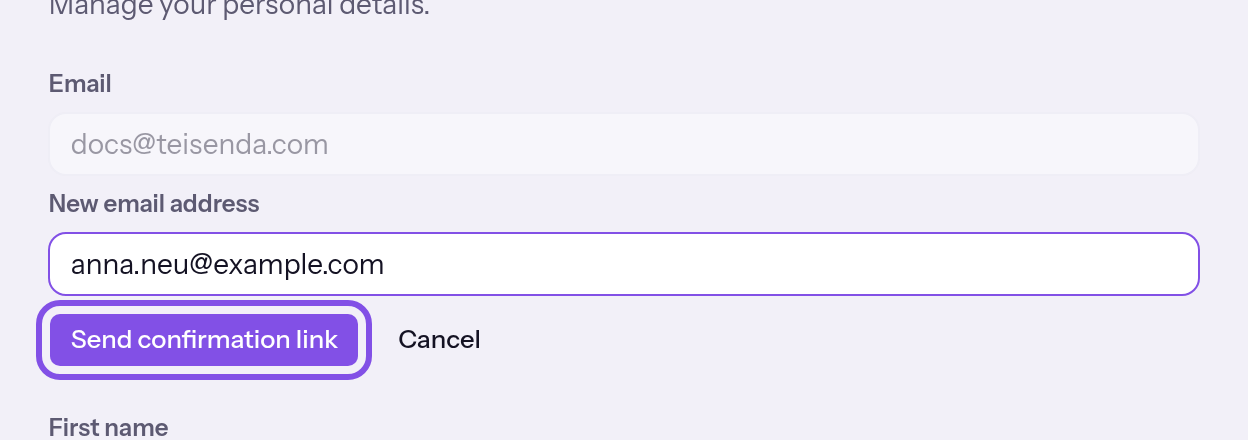
The new-address field with the button that requests the change.
You receive emails at both addresses. Until confirmation, keep signing in with your previous address.
Good to know
- Another request does not cancel an earlier one; each request has its own two links.
- Both links are valid for 24 hours from the request.
If something goes wrong
Please enter a valid email address.
The value exceeds 200 characters or is not an email address. Enter the full new address.
Set up a password first to change your email.
Your account has no password. Normally the page already shows a note instead of the link. Set a password first.
Please use a permanent email address — disposable addresses aren’t allowed.
The new address's domain is on the app's list of disposable email providers. Use a permanent email address.
That's already your current address.
The new address is your current address; upper and lower case make no difference. Enter a different address.
This email address is already in use.
The new address already belongs to another account; TEISENDA sends no email. Use an address with no TEISENDA account.
Too many attempts. Please try again in … minutes.
There have been too many requests in the current hour: 4 for your account or 15 from the same IP address; requests, confirmations and stops count together for the IP address. Requests that TEISENDA later rejects because of the address also count. Wait for the stated number of minutes.
More questions about requesting a change
Which emails does TEISENDA send when I request a change?
- To the new address: Confirm your new email address. The email contains the link that performs the change; it is valid for 24 hours and works once.
- To the current address: Change to your login email requested. The email names the new address and contains the link that stops the change.
Confirm the new address
Use the link in the email to the new address to perform the change.
Note
The link is no more than 24 hours old and unused, the change has not been stopped, and no other account has taken the new address since the request.
-
Open the link in the email
Confirm your new email address opens. Opening it changes nothing and does not use up the link.
-
Confirm the change
Click Confirm email address. TEISENDA changes your account's address, and the browser opens the sign-in page with Your login email was changed. Please sign in with the new address.
Sign in again with the new address and your existing password: all sessions have ended. Your login email was changed confirms the change.
If something goes wrong
This link is invalid.
The link is incomplete or unknown. Use the link from the email without changing it, or request the change again.
This link has expired. Please request the change again.
The link is older than 24 hours. Sign in with the old address and request the change again.
This change has already been completed.
The change has already been performed with this link. Sign in with the new address.
This change was stopped.
The change was stopped using the link received at the old address. If you want the change, sign in with the old address and request it again.
This email address is already used by another account.
Another account has taken the new address since your request. Request the change again with a different address.
Too many attempts. Please try again in … minutes.
There have been more than 15 requests, confirmations and stops of an address change from the same IP address in the current hour. Wait for the stated number of minutes, then click the button again.
Stop a requested change
Use the link in the email to your previous address to stop a requested change before it is performed.
Note
The link is no more than 24 hours old, and the change has neither been performed nor stopped.
-
Open the link in the email
Stop the email change opens. Opening it changes nothing.
-
Stop the change
Click Stop the change. The requested email change was stopped. Your current address stays active. replaces the button.
This request is stopped, and the link sent to the new address no longer works. Your address, password and sessions remain unchanged; other pending requests have their own stop links.
If something goes wrong
This link is invalid.
The link is incomplete or unknown. Use the link from the email without changing it.
This link has expired.
The link is older than 24 hours. The link to the new address expired at the same time, so the change can no longer be performed either. Nothing remains to stop.
The change has already been completed and can no longer be stopped.
The change has already been performed using the link to the new address. You can no longer stop it: the account has the new address and all its sessions have ended.
This change was already stopped.
The change has already been stopped with this link. Nothing remains to do.
Too many attempts. Please try again in … minutes.
There have been more than 15 requests, confirmations and stops of an address change from the same IP address in the current hour. Wait for the stated number of minutes, then click the button again.