
Switch Spaces and view your memberships
Find the Space you want and your role in it.
On this page
A Space is a shared workspace in the app. Use the Space switcher to choose which one you work in.
Note
You belong to at least one other Space that is confirmed and is not scheduled for deletion.
Switch to another Space
-
Open the Space switcher
Click the current Space's name in the Space switcher. A check mark identifies the current Space in the list.
-
Choose the Space
Click the name of the Space you want to switch to. The list closes and the browser opens the chosen Space.
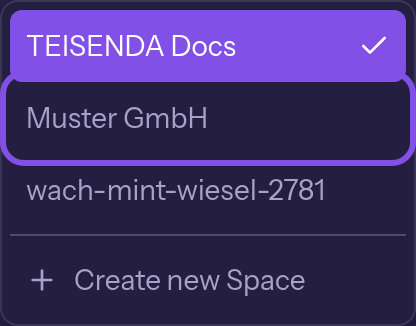
Another Space is marked; the current one has a check mark.
You now work in the chosen Space; its ID appears at the start of the address.
Good to know
- From a settings page, the browser opens the chosen Space's general settings; otherwise it opens its home address
/<Space-ID>/hosting/projects. - The app remembers your choice; pages without a Space in the address use this Space (learn more).
- You can also open a saved address of another Space you belong to, for example from a bookmark. This switches you to that Space, and the app remembers it.
- An address containing the ID of a Space you cannot access takes you to the home address of the Space the app last remembered.
View all your Spaces and roles
-
Open your Spaces page
Open the settings. Choose My Spaces in the Personal group.
-
Read the Your Spaces card
Each Space shows your joining date and role. The button in its row lets you leave the Space.
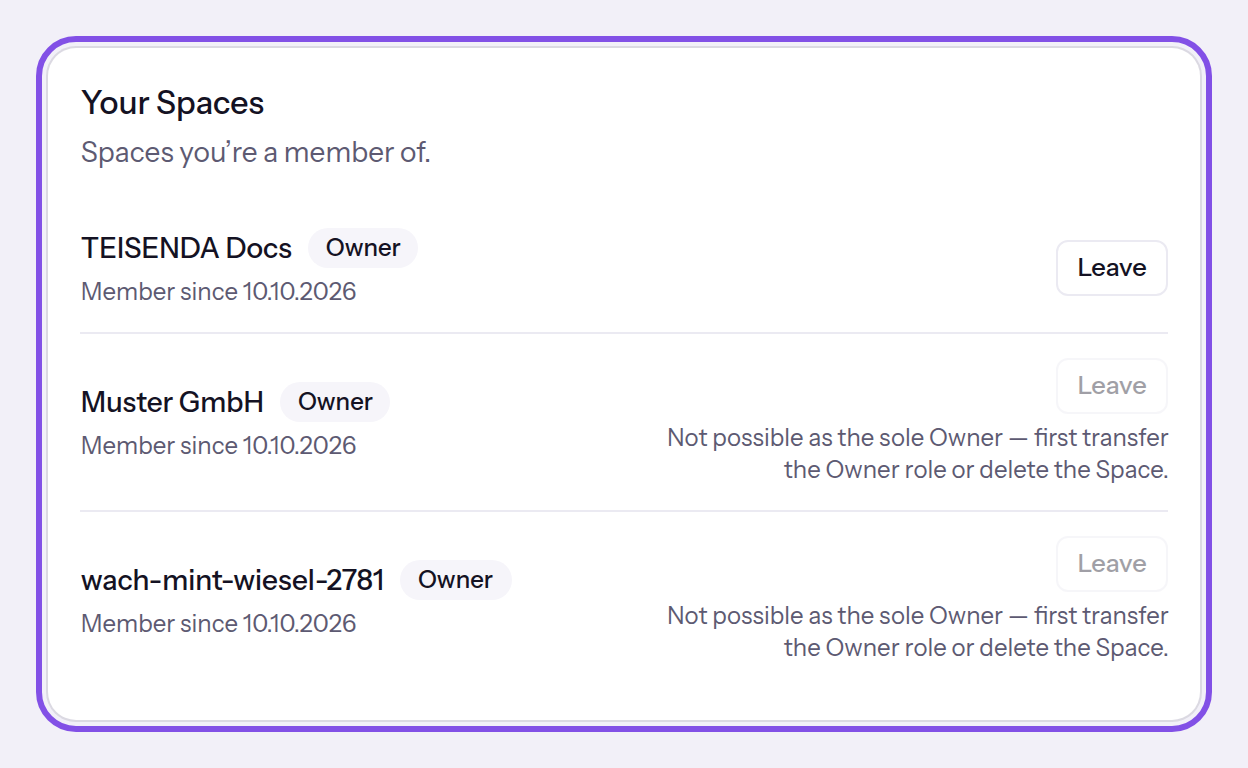
The list shows your role in each Space; here you can only leave the first one.
You can now see which Spaces you belong to and your role in each.
Good to know
- Spaces scheduled for deletion or never confirmed are absent from the list.
- If you do not belong to any Space, you can find the Personal group at
/settings/profile; the card shows You’re not a member of any Space..