
Create and manage teams
Create teams and choose their members.
On this page
Use teams to group members of your Space, for example to share a private website. A Space is a shared workspace in the app.
Note
You are Owner or Administrator in a Space that has been set up.
Create a team
-
Open the creation dialog
Open the User management page, click Teams, then Create team. A dialog opens.
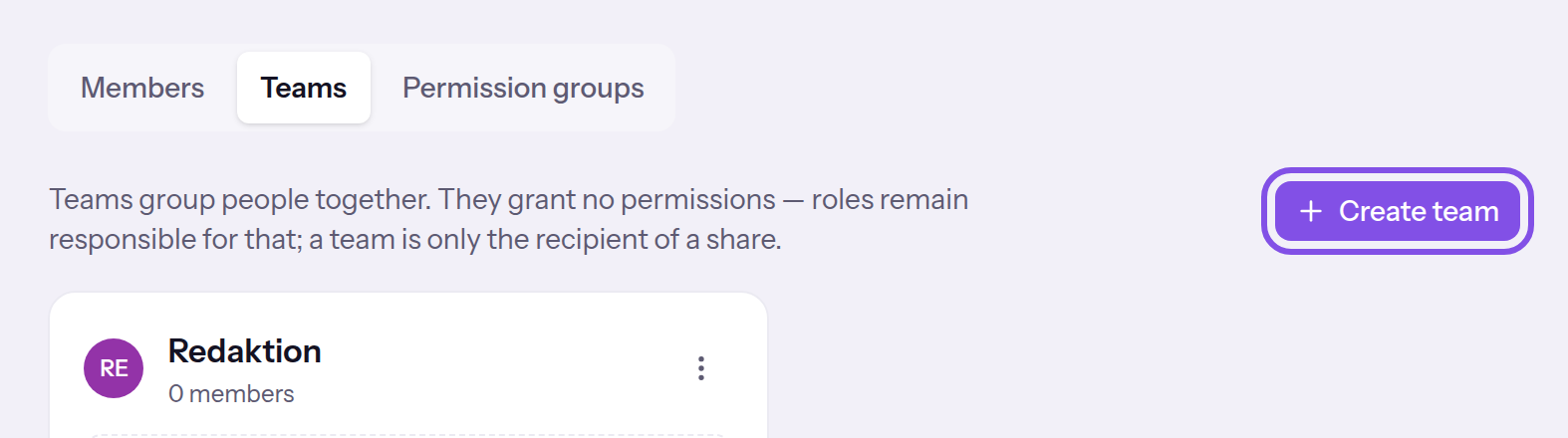
The create-team button. -
Name and save the team
Enter a name in the dialog, for example
Redaktion, and click Save. Cancel closes the dialog without creating anything.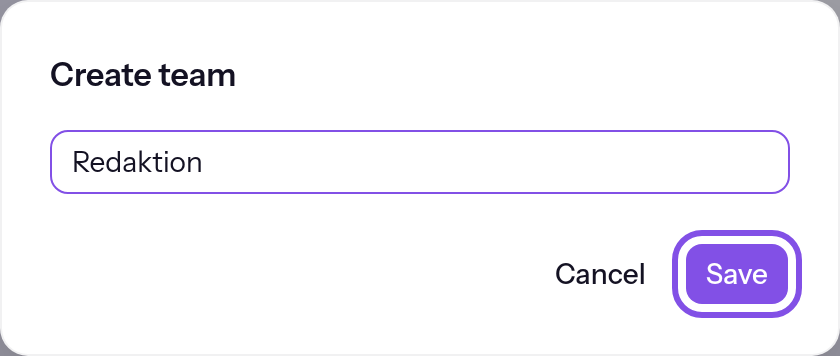
The name is filled in; the save button is highlighted.
The team appears as a card with no members.
Add members to a team
-
Open the team's members
Click Manage members on the team card. The dialog shows Space members: a check mark identifies team members, a plus sign everyone else.
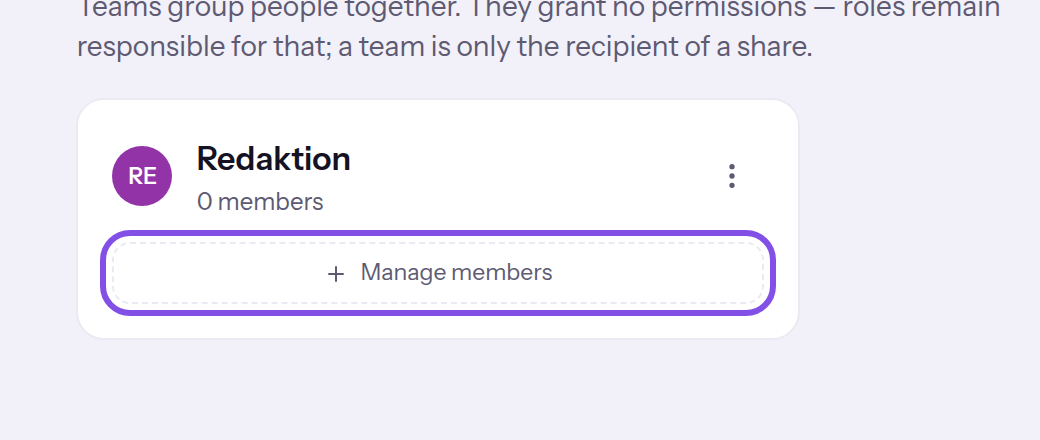
The manage-members button on a team card. -
Add the people
Click the person's plus sign; they are added directly. Use Search for a person to search by name or address.
-
Close the dialog
Click Done. The card shows the new count.
The team has the chosen members, and anything shared with the team applies to them.
Good to know
- Clicking a button with a check mark also removes the person from the team immediately.
- Removing someone from the team prevents them opening a website shared with it on a new visit, unless they created the project. An existing visit continues until the next sync, at most about five minutes.
Rename a team
-
Choose the rename entry
Open the team card's three-dot menu and choose Rename.
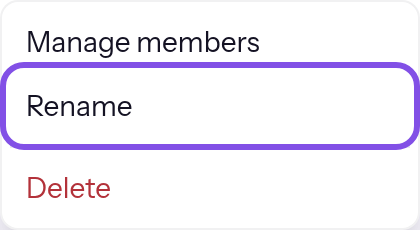
A team's menu; the rename entry is highlighted. -
Save the new name
Replace the name with the new one, for example
Redaktion Online, and click Save.
The team has the new name; its members and anything shared with it remain unchanged.
Delete a team
Warning
You cannot undo deletion of a team.
-
Choose the delete entry
Open the team card's three-dot menu and choose Delete. The confirmation dialog opens.
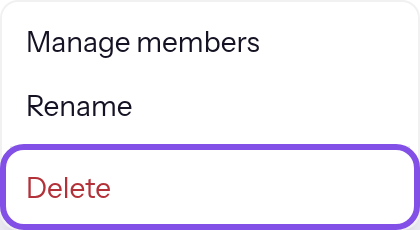
A team's menu; the delete entry is highlighted. -
Confirm deletion
In the dialog, click Delete. Cancel closes the dialog without deleting anything.
The team is deleted; the people remain members of the Space with their roles.
Good to know
- For a private website, TEISENDA deletes the share with this team along with the team; shares with individual people remain.
- If a website was shared only with this one team, only the person who created the project can open it afterwards, as long as they belong to the Space.
- Team members can no longer view the website through that team; an existing visit continues until the next sync, at most about five minutes.
This applies to every team action
Good to know
- A team grants no permissions on its own; what someone may do in the Space is determined by their role.
- In hosting, you share a private website with selected people or exactly one team, never both or several teams. People belonging to both that team and the Space can then view it.
- A team's name is unique within the Space and has at most 80 characters.
- A person can belong to several teams.
If something goes wrong
That didn't work.
- When creating a team, another team in the Space already has that name. Choose a different name.
- When renaming or deleting, the team no longer exists or you are no longer Owner or Administrator; for deletion, the message appears in the dialog.
- If none of these applies, reload the page and try again. TEISENDA has saved nothing.
More questions about teams
The card counts more people than the dialog shows
The card's count includes entries for people who left the Space or were removed. They do not appear in the dialog and cannot be deselected there. They count again once the person rejoins.
Is there a limit on teams or members per team?
No. Neither Free nor Max limits teams per Space, members per team or teams per person. A person can belong to a team only once.