
Delete and restore a Space
Learn how to delete a Space and undo a scheduled deletion.
On this page
A Space is a shared workspace in the app. Deleting it schedules the Space and all its data for removal; you can undo this within 30 days.
Warning
After the deadline, TEISENDA permanently deletes the Space, its data and stored files. You cannot restore a permanently deleted Space.
Keep the email containing the restoration link. TEISENDA cannot resend the link; if you no longer have the email, contact support so they can review your case. This does not guarantee restoration.
A paid subscription with a monthly commitment does not prevent deletion, but ends immediately when you delete the Space. TEISENDA does not refund the paid month, and restoring the Space does not restore the subscription.
Check whether you can delete the Space
Note
You are Owner and the only member; there is no pending, unexpired invitation.
Your account has a password. If you sign in only through an external provider, set a password first.
No subscription blocks deletion; see the subscription restrictions below.
If a requirement is missing, the deletion section shows the reason instead of the button.
Delete the Space
-
Click Delete Space
Open the general settings. At the end of the page, click Delete Space under Danger zone.
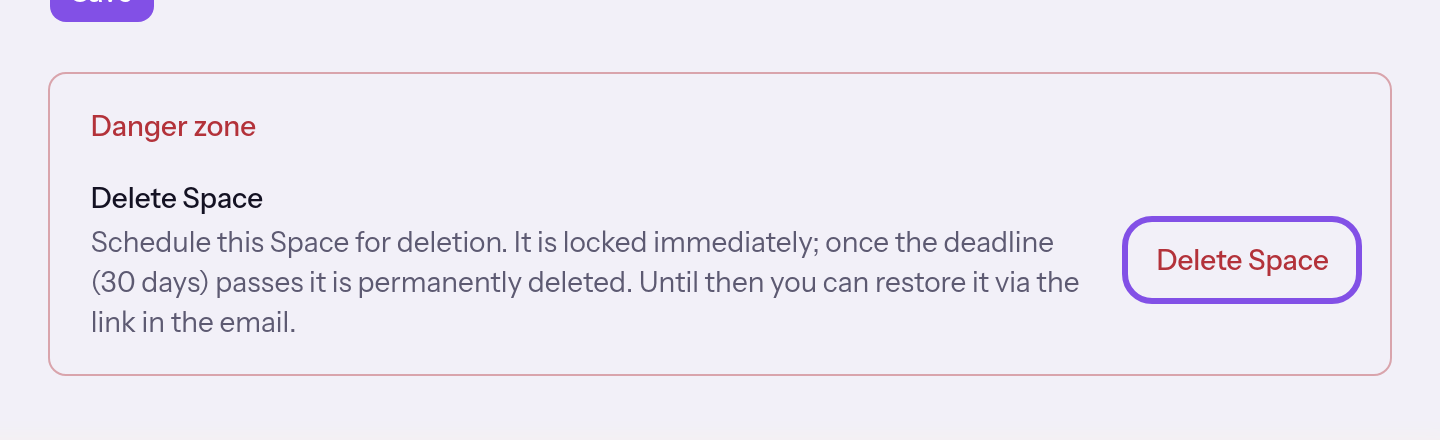
The delete button in Danger zone is highlighted. -
Type the Space ID and confirm
Type the ten-digit Space ID shown above the field. Click Delete Space; the button only becomes active when the ID matches.
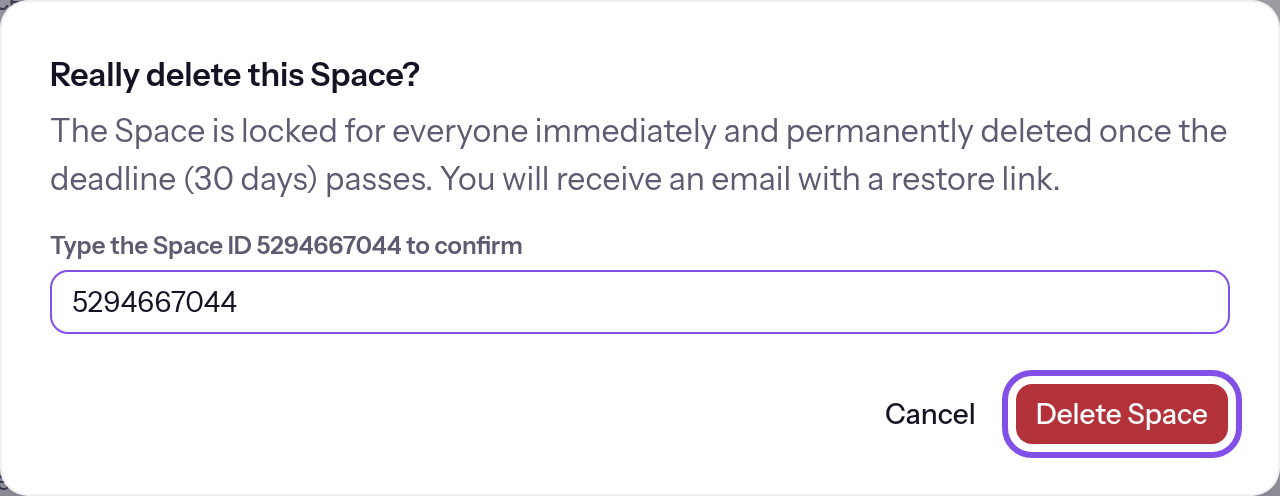
The Space ID is entered; the confirm button is active and highlighted. -
Verify your identity if the app asks
If two-factor sign-in is enabled, enter the code from your authenticator app under 6-digit code in the Confirm your identity dialog; otherwise enter your password under Password. Click Confirm.
The Space is blocked, and you receive the restoration email; its websites go offline with the next sync, which runs every five minutes by default.
If something goes wrong
Reasons that block deletion from the start appear in Danger zone instead of the button. Issues detected only when you confirm appear as a sentence above the dialog's buttons.
Set up a password for your account before you can delete a Space.
Your account has no password; the section shows this sentence and the Set up password link instead of the button. Set a password in your personal settings under Security, then delete the Space. The link leads to My profile, which has no password section.
Remove all other members from the Space first.
The Space has other members. Remove them first; Go to members leads to the members page, and Manage members shows you how.
Revoke all pending invitations first.
At least one invitation to the Space is still pending and has not expired. Revoke pending invitations; Go to members leads to the members page.
“This Space has an active subscription. If you cancel it today, it ends on …”
A subscription with an annual commitment is active and has not been cancelled. Cancel the subscription on the billing page using Go to billing, then delete the Space after the subscription ends.
“This Space's subscription is cancelled and continues until …”
A subscription with an annual commitment is cancelled but has not ended yet. The sentence gives its end date; delete the Space after that. The Go to billing link appears below.
A subscription is still running for this Space. Cancel it under “Billing” — once it has ended, the Space can be deleted.
The Space's subscription has not ended and blocks deletion. This sentence replaces the button if there is no end date to show or the subscription status is unknown. It appears in the dialog if an annual subscription or one with an unknown status was added after the page loaded. Cancel it on the billing page; once it ends, you can delete the Space.
The last charge for this Space’s subscription failed. Settle the open invoice first — after that, the Space can be deleted.
The last payment for a subscription with a monthly commitment failed, and the payment provider has an open invoice. Pay it on the billing page, then delete the Space. If you do not pay, the subscription ends due to non-payment and no longer blocks deletion; for what happens to the Space, see Cancel a subscription.
A booking has been started for this Space, and its payment is still outstanding. Complete the payment or wait until the booking expires (about a day) — after that, the Space can be deleted.
A subscription purchase has started and its first payment is still pending, with either a monthly or annual commitment. Complete payment or wait for the purchase to expire (about a day), then delete the Space. The Go to billing link appears alongside.
A subscription is now running for this Space that would end immediately on deletion. Nothing was deleted. Close this dialog and open it again.
A subscription with a monthly commitment that would end on deletion was purchased after the page loaded or the dialog opened, and the dialog did not mention it. TEISENDA has deleted nothing. Close and reopen the dialog; it will explain what happens to the subscription.
The invoice for the new month is currently being created for this Space’s subscription. Nothing was ended and nothing was deleted. Please try again in about an hour.
The payment provider is creating the new month's invoice. TEISENDA has ended nothing and deleted nothing. Try again in about an hour.
Something has just changed in this Space’s subscription. Nothing was deleted. Close this dialog and open it again.
The payment provider's subscription status differs from the status TEISENDA knew. TEISENDA has deleted nothing. Close and reopen the dialog.
The payment provider isn’t responding right now. Nothing was deleted. Please try again in a few minutes.
The payment provider did not respond. TEISENDA has deleted nothing. Try again in a few minutes.
The subscription has been ended at the payment provider, but this has not arrived here yet. The Space was not deleted. Please try again in a few minutes.
The subscription has ended at the payment provider, but TEISENDA has not received that update yet. TEISENDA has not deleted the Space. Try again in a few minutes; the second attempt completes deletion.
The subscription for this Space has already been ended in the process.
This sentence accompanies another message if the subscription has already ended in this attempt but the Space has not been deleted. The Space remains open on the Free plan. Follow the accompanying message and repeat deletion; the subscription does not return.
The restore email could not be sent. Nothing was deleted. Please try again.
The email containing the restoration link could not be sent. TEISENDA has scheduled nothing for deletion. Try again.
Something went wrong. Please try again.
The request failed for another reason. Try again.
The code or password is incorrect.
The code or password you entered in the second dialog is incorrect. Enter the correct code or password.
“Too many failed attempts. Please try again in … minutes.”
You entered an incorrect value five times in the second dialog within 10 minutes. The dialog is then locked for up to 10 minutes; wait for the stated time and try again.
Something went wrong. Please try again.
Identity verification failed for another reason. Try again.
This factor is not available.
The chosen factor is not set up for your account. Use the link below the field to switch to the other factor.
More questions about deletion
Which subscriptions block deletion?
- A subscription with an annual commitment blocks deletion until it ends, even if it is cancelled.
- A subscription with a monthly commitment whose last payment failed blocks deletion until you pay or it ends due to non-payment.
- A purchase whose first payment is still pending blocks deletion until it is paid or expires; this takes about a day.
- A paid subscription with a monthly commitment does not block deletion, even if cancelled: Danger zone shows the paid-through date, and the dialog states above the field that deleting the Space ends the subscription. Dates in the section use the Europe/Zurich time zone.
When does TEISENDA permanently delete the Space?
The period is 30 days; Danger zone, the deletion dialog and the email state it. Afterwards, TEISENDA permanently deletes the Space, its data and stored files, and emails the member with the Owner role. This happens with the next deletion run after the 30 days; the run takes place once a day by default.
Which emails does TEISENDA send?
- Immediately, before the Space is scheduled for deletion, to you: the restoration link. The subject contains the Space name followed by “will be deleted”. If deletion ended a subscription, the email says so too.
- After permanent deletion, to the member with the Owner role. The subject contains the Space name followed by “has been deleted”.
Restore the Space
Use the link in the deletion email to undo the scheduled deletion.
Note
You have the email containing the link sent when deletion was scheduled.
The Space is still scheduled for deletion and has not been permanently deleted.
You have not used the link yet.
-
Open the link in the email
Check the Space name on Restore Space. Opening the page alone does not restore the Space.
-
Confirm restoration
Click Restore Space. The Space restored confirmation appears.
-
Sign in
Click Go to sign in. Restoring the Space does not sign you in.
The Space is open again; its websites return with the next sync, which runs every five minutes by default. If deletion ended a subscription, see the consequences for websites after a subscription ends.
Good to know
- The link works once only.
- It has no separate expiry date: it works until the Space is permanently deleted.
If something goes wrong
This restore link is invalid or no longer valid.
The page shows this message in three cases without saying which applies:
- The link is unknown or has already been used.
- The Space has already been restored. Sign in as usual.
- The Space is permanently deleted. You can no longer restore it.
More questions about restoration
What happens to the websites if deletion ended a subscription?
After restoration, the Free plan applies. If usage fits within Free, the websites are online; otherwise they remain paused. Projects, versions and domains are retained. Purchase a new subscription or reduce usage and have Owner or Administrator switch the Space to Free: After a subscription ends.