
Manage versions and backups
Return to earlier versions and manage backups.
On this page
Republish an earlier version, protect a version as a backup or delete it.
Note
You need Owner, Administrator or User to make changes. Read-only can read the version list.
Read the version list
-
Open the list
Versions on the project page lists versions, newest first. The published one has Published; a backup has Backup.
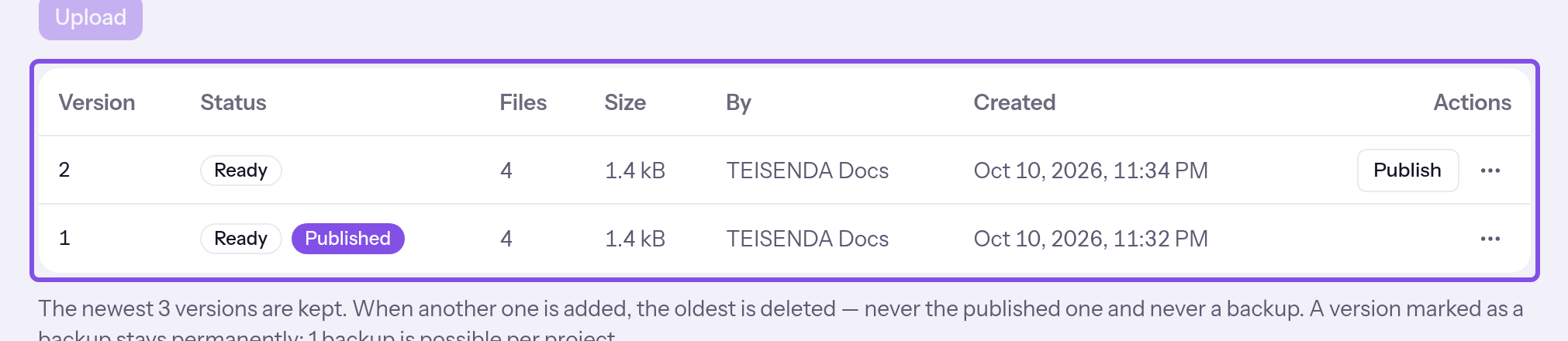
The version list. -
Open a version's menu
Open the version's three-dot menu. Depending on its state, you find Keep as backup, Unmark as backup and Delete.
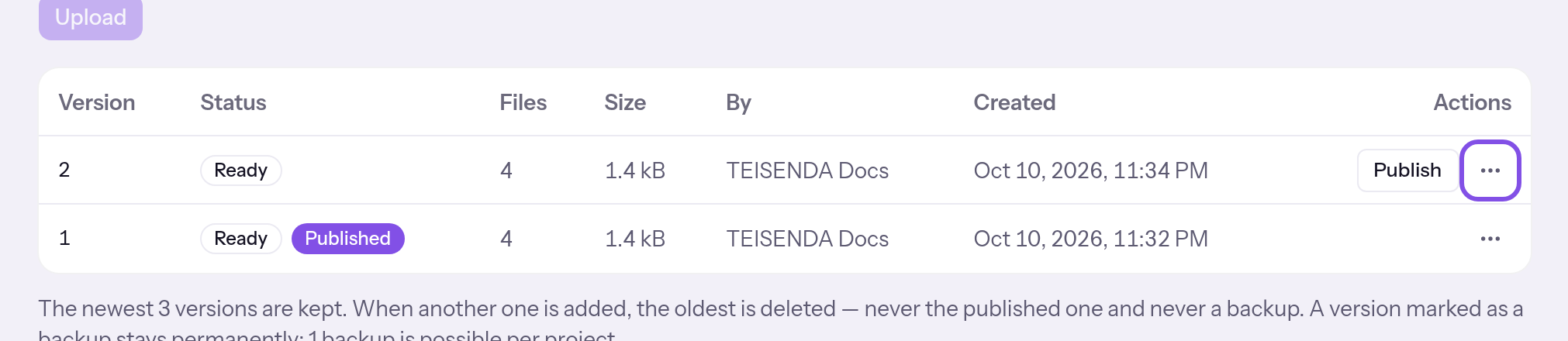
The button for a version's menu.
The menu shows which actions apply to the version.
Good to know
- The interface shows only a version's file count and size, not its files or a preview.
- The published version has no delete entry in its menu.
More questions about the list
What do Open and Ready mean?
Open is the draft: it still accepts files and cannot be published. A project has at most one. Ready is a completed version: the hosting node has checked and frozen it, an index.html is in its root folder, and it meets the technical limits. It cannot be changed, and you can publish it. At most one project version is published.
Can an application read a version's files?
Yes, through the Connector: hosting_list_files lists a version's files; hosting_read_file reads a file. Unlike the version list, both tools require Owner, Administrator or User; TEISENDA rejects them for Read-only.
A project retains only its newest versions
| Item | Free plan | Max plan |
|---|---|---|
| Versions a project retains (including the published version, excluding drafts and backups) | 3 | 5 |
| Additional backups a project can have | 1 | 3 |
Good to know
- A new completed version can permanently displace the oldest versions; the published version, draft and backups stay protected.
- A plan change or removing backup status deletes nothing by itself; excess versions disappear with the next completed version.
Republish an earlier version
Return to a version published before that is not currently published.
-
Click the republish button
Click Publish again for the earlier version. It is published without confirmation; Version published confirms it.
Visitors see the earlier version again. The previous version stays listed.
Good to know
- This counts as no publication on any plan (called Deployments in the app) and works even when the plan's publications are used up.
- You can return only to versions the project retains: the newest 3 on Free or 5 on Max, plus backups.
If something goes wrong
Published, but not yet transferred to the hosting node
This is not a rejection: the change is saved in TEISENDA, but the hosting node has not accepted it. Visitors still see the previous state. Wait about five minutes or send it yourself: Send the current state again.
For messages such as You don't have permission for that., see Understanding hosting.
More questions about republishing
How do I restore a backup?
Publish it. If the version was published before, this returns to it. If it was never published, the plan counts a publication.
Keep a version as a backup
Keep a completed version (Ready) as a backup. The project has fewer backups than its plan allows: 1 on Free, 3 on Max.
-
Choose the backup entry
Open the version's menu and click Keep as backup. There is no confirmation.
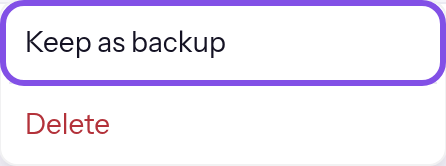
The backup entry in the version's menu.
Backup marks the version as a backup.
Good to know
- A backup does not count towards retained versions, and TEISENDA never deletes it when newer versions arrive.
- Deleting the whole project removes the backup too; backup status does not protect it then.
If something goes wrong
“Your plan allows … backups per project.”
The project already has as many backups as the plan allows: 1 on Free, 3 on Max. The keep-as-backup entry is disabled, with this reason on a second line. Remove another backup's status first: Remove backup status.
For messages such as You don't have permission for that., see Understanding hosting.
Remove backup status
-
Choose the remove-backup entry
Open the menu of the version marked Backup and click Unmark as backup. The badge disappears immediately and Backup status removed appears.
The version counts towards retained versions again and can be deleted.
Delete a version
Warning
You cannot recover a deleted version or its files. Deletion does not restore a publication: anything counted by the plan stays counted.
The version is neither published nor a backup. Otherwise, publish another version first or remove backup status.
-
Choose the delete entry
Open the version's menu.
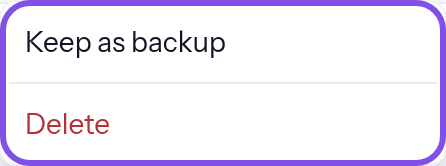
A version's menu with its delete entry. Click Delete. A confirmation titled Delete version opens; nothing is deleted yet.
-
Confirm deletion
Click Delete in the confirmation. Cancel closes it without deleting.
The version disappears from the list. Deleting a draft discards it.
If something goes wrong
A backup isn't deleted. Unmark it as a backup first.
The version is a backup, and the delete entry is disabled with this reason on a second line. Remove backup status first, then delete the version: Remove backup status.
The hosting node rejected the version.
This appears only when discarding a draft: the hosting node did not perform it, and the draft remains. If it does not respond, the message is The hosting node isn't responding. Try again in a few minutes.
For messages such as You don't have permission for that., see Understanding hosting.