
Invite members
Invite people and manage pending invitations.
On this page
Invite someone to your Space by email and choose their role. A Space is a shared workspace in the app.
Invite someone
Note
You are Owner or Administrator in a Space that has been set up.
You can assign only roles no higher than your own: as Administrator, you invite with Administrator, User or Read-only. Only someone with Owner can assign that role.
-
Open User management
Follow Open User management. The first section on Members is Invite member.
-
Fill in the form
Enter the person's address in Email address, for example
anna.beispiel@example.com, and choose their role in Role. User is preselected. -
Send the invitation
Click Invite. Change saved. appears.
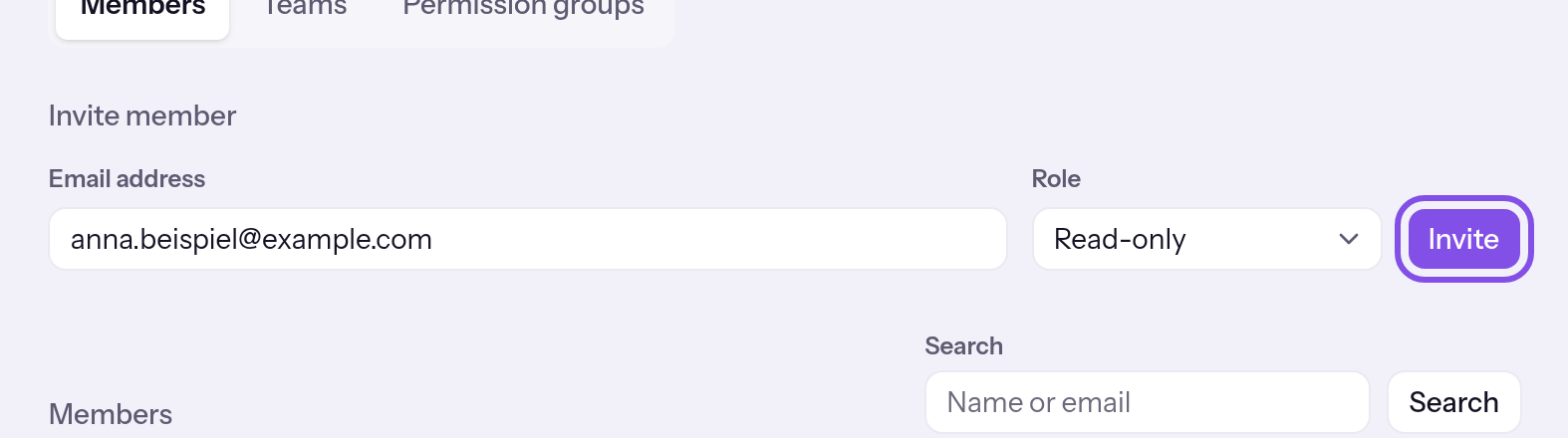
The completed form; the invite button is highlighted.
The invitation appears under Pending invitations with Pending, and the person receives an email containing the link.
Good to know
- The invitation is valid for 7 days from creation or the last resend, and only for its recipient address.
- The role is fixed in the invitation.
- The person becomes a member only after accepting: Accept an invitation.
- Inviting an address again replaces the previous invitation, whose link stops working.
- An invitation that can still be accepted prevents deletion of the Space; an expired one does not.
If something goes wrong
An address message appears below Email address
The field is empty or does not contain a valid email address. TEISENDA has sent nothing. Enter a valid address.
This person is already a member of this Space.
An account with this email address already belongs to the Space. TEISENDA has created no invitation. To give the person a different role, change their role.
Please enter a permanent email address — disposable addresses aren’t allowed.
The address's domain is on the app's list of disposable email providers. TEISENDA has created no invitation. Use the person's permanent email address.
You are not allowed to perform this action.
- You do not, or no longer, have Owner or Administrator in this Space, or the role is higher than your own. Reload the page. If User management no longer opens, contact a member with Owner.
- The request failed for another reason, for example because the email could not be handed over for sending. TEISENDA saves the invitation before sending the email, so it may appear in the list even if no email went out. Reload the page. If the invitation is listed, resend it; otherwise invite the person again.
More questions about invitations
What does the recipient's email contain?
- The subject starts with “Invitation to” and names the Space. It uses your account's language.
- The text names the Space as it is called at that moment, the role, and you as the inviter, using your account's name or its email address if no name is set.
- It says the link is valid for 7 days. Accept invitation opens the page where the person accepts the invitation.
- The link exists only in this email. The person gets a new link when you resend the invitation.
Is there a limit on members or invitations?
No. Neither the Free nor Max plan limits members or invitations per Space, and TEISENDA does not limit how often you invite someone or resend an invitation.
Resend an invitation
Resending gives the person a new link valid for another 7 days. You can also resend an expired invitation.
Note
You have Owner or Administrator in the Space, and the invitation's role is no higher than yours. As Administrator, you see no resend button for a Owner invitation.
-
Open invitations
Pending invitations is on User management, under Members.
-
Resend the invitation
Click Resend in the invitation's row. There is no confirmation.
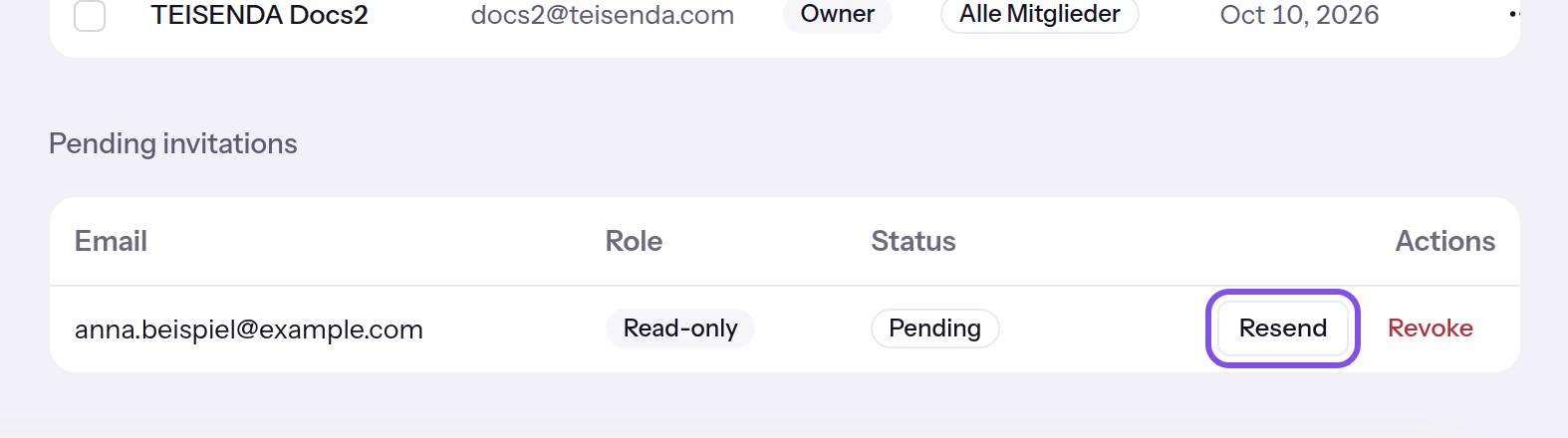
The resend button is in the invitation's row.
The person receives a new email; the earlier link is invalid.
If something goes wrong
This person is already a member of this Space.
An account with this address has since joined the Space. TEISENDA has sent nothing. Reload the page and revoke the invitation if it is still listed.
Please enter a permanent email address — disposable addresses aren’t allowed.
The address's domain is on the list of disposable email providers. TEISENDA checks this on every send and has sent nothing. Revoke the invitation and invite the person's permanent email address.
You are not allowed to perform this action.
- You do not, or no longer, have Owner or Administrator in this Space, or the invitation's role is higher than yours. Reload the page. If User management no longer opens, contact a member with Owner.
- The request failed for another reason, for example because the email could not be handed over for sending. The new invitation is already saved, and the earlier link no longer works. Reload the page and resend the invitation.
Revoke an invitation
Revoke an invitation that nobody has accepted yet.
Note
You have Owner or Administrator in the Space. The invitation's role does not matter: even Administrator can revoke a Owner invitation.
Warning
You cannot undo revocation. To try again, invite the address again.
-
Click Revoke
Under Pending invitations, click Revoke for the invitation. Really revoke? appears in the row.
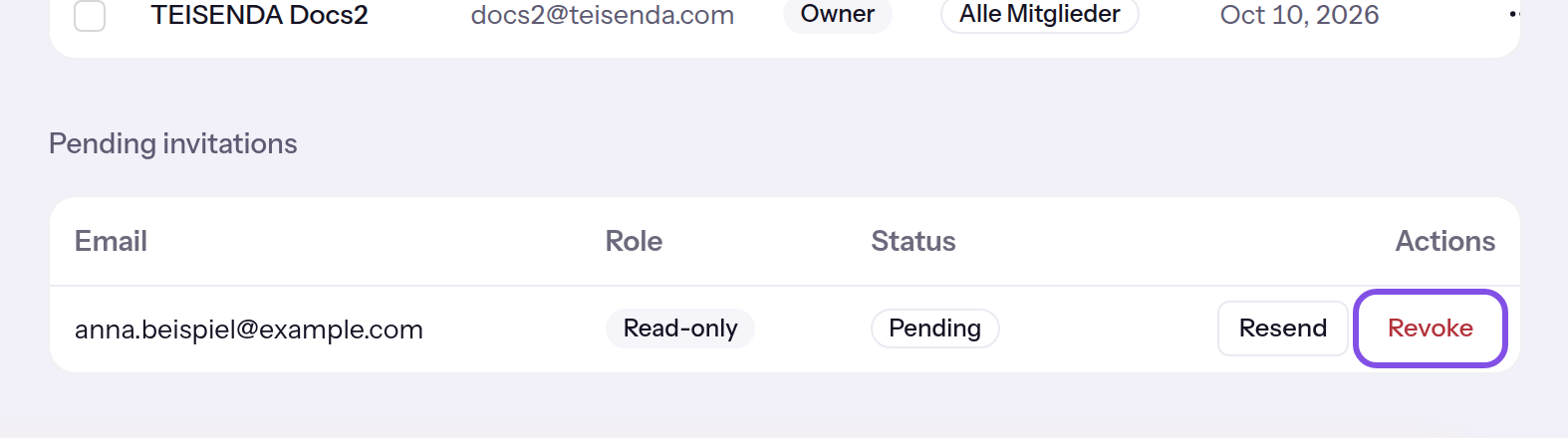
The revoke button is in the invitation's row. -
Confirm revocation
Click Revoke again in the same row. Cancel dismisses the question without revoking anything.
The invitation disappears and its link is invalid. The person receives no email about this.
If something goes wrong
You are not allowed to perform this action.
You do not, or no longer, have Owner or Administrator in the Space, or the request failed for another reason. Reload the page and try again. If User management no longer opens, contact a member with Owner.