
Set a website's visibility
Choose whether your website is public or accessible only to selected Space members. A Space is a shared workspace in the app.
On this page
Note
You need Owner, Administrator or User to change it. Read-only can view current visibility.
What do public and private mean?
- Publicly visible: anyone who knows the address can view the website without signing in.
- Private: TEISENDA sign-in comes before the website. Only current Space members it is shared with can enter.
Make the website public
The project is private: the switch in Visibility on the project page is off.
-
Turn the switch on
Click Publicly visible. A confirmation titled Make the website public? opens; nothing has changed yet.
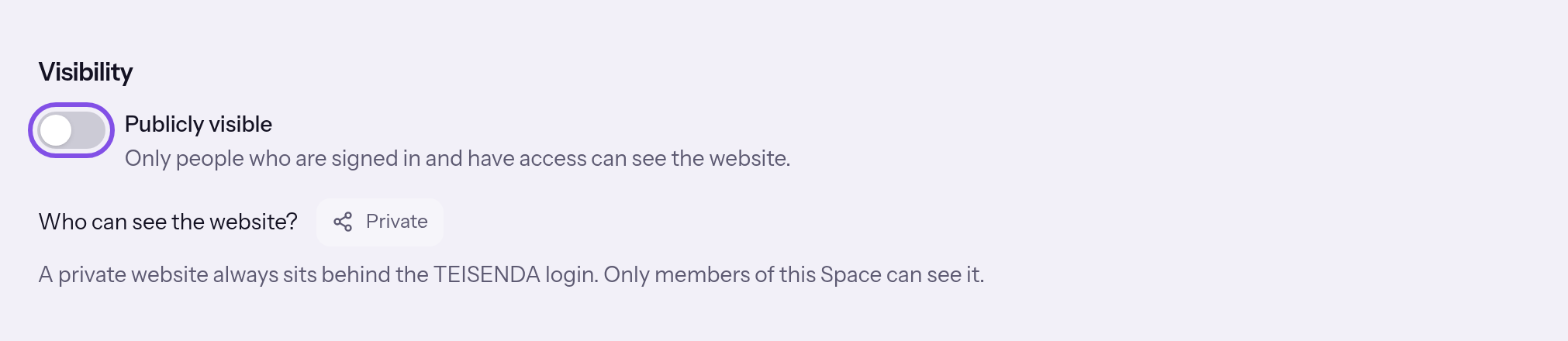
The public switch. -
Confirm
Click Make public. Visibility saved appears and the switch is on. Cancel closes the confirmation and keeps the website private.
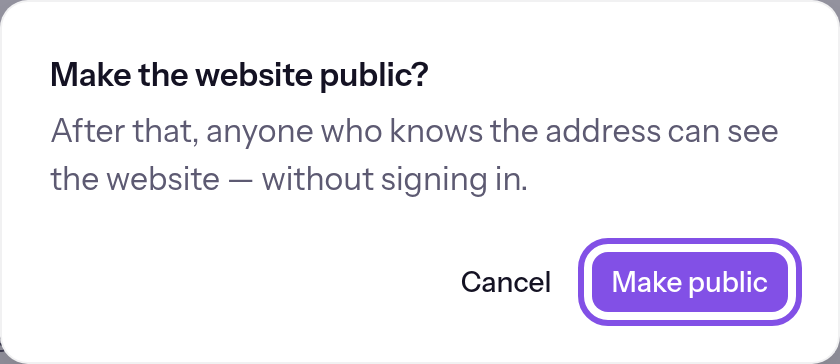
The confirmation for making a website public.
The published version is accessible without sign-in and readable by search engines. Without a published version, the address does not show a website yet.
If something goes wrong
Saved, but not yet transferred to the hosting node
This is not a rejection: the change is saved in TEISENDA, but the hosting node has not accepted it. The reason appears below the switch. Visitors still see the previous state. Wait about five minutes or send it yourself: Send the current state again.
Make the website private again
The project is public: the switch is on.
-
Turn the switch off
Click Publicly visible. The website becomes private immediately and Visibility saved appears. This direction has no confirmation.
Visitors must sign in to TEISENDA again. The previous sharing settings apply; for a new project, only its creator has access.
If something goes wrong
Saved, but not yet transferred to the hosting node
This is not a rejection: the change is saved in TEISENDA, but the hosting node has not accepted it. The reason appears below the switch. Visitors still see the previous state. Wait about five minutes or send it yourself: Send the current state again.
Choose which members can view a private website
Choose one of four levels for a private website. The project is private; a public project's section does not show the pill.
-
Open the dialog
In Visibility, click the pill after Who can see the website?. A dialog with four levels opens.
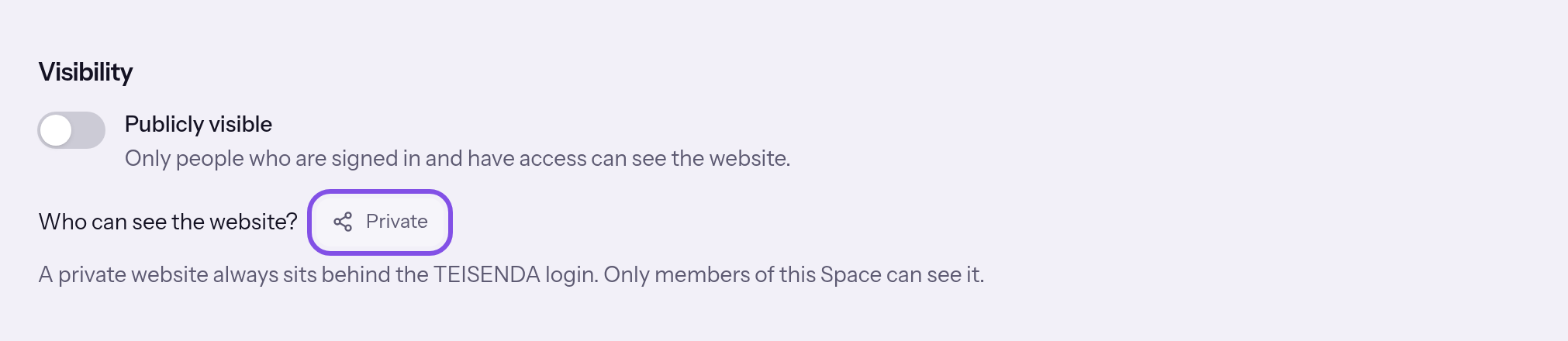
The pill after the question. -
Choose the level and people
Choose a level. Under Specific people, select people with Can view and confirm with Done; under Team, select exactly one team.
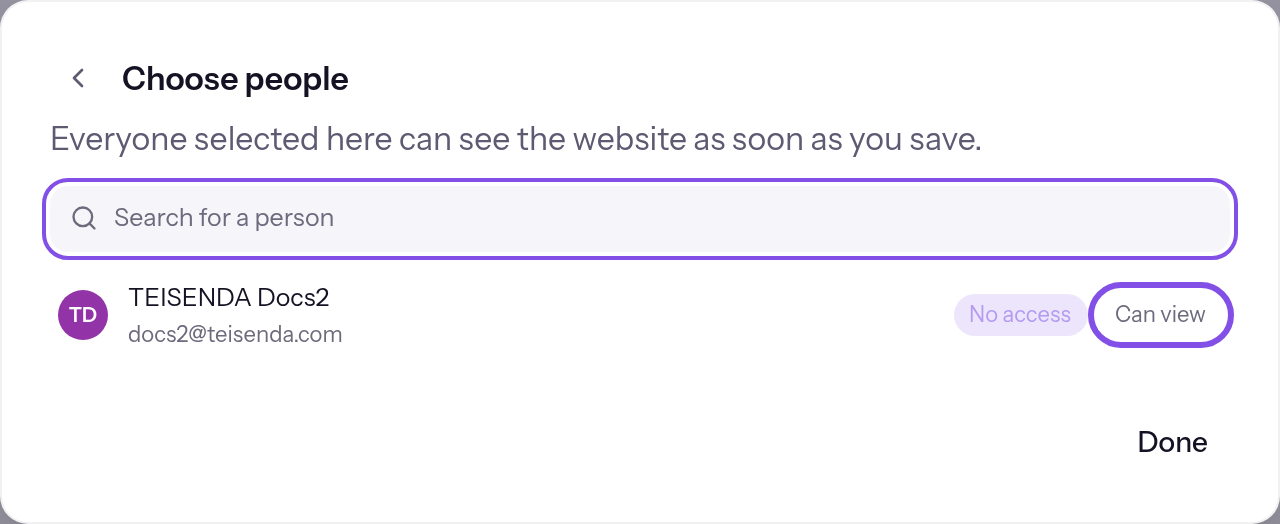
The choice in a person's row. -
Save the selection
Click Save. The dialog closes and the pill shows the new selection. Cancel discards everything selected in the dialog.
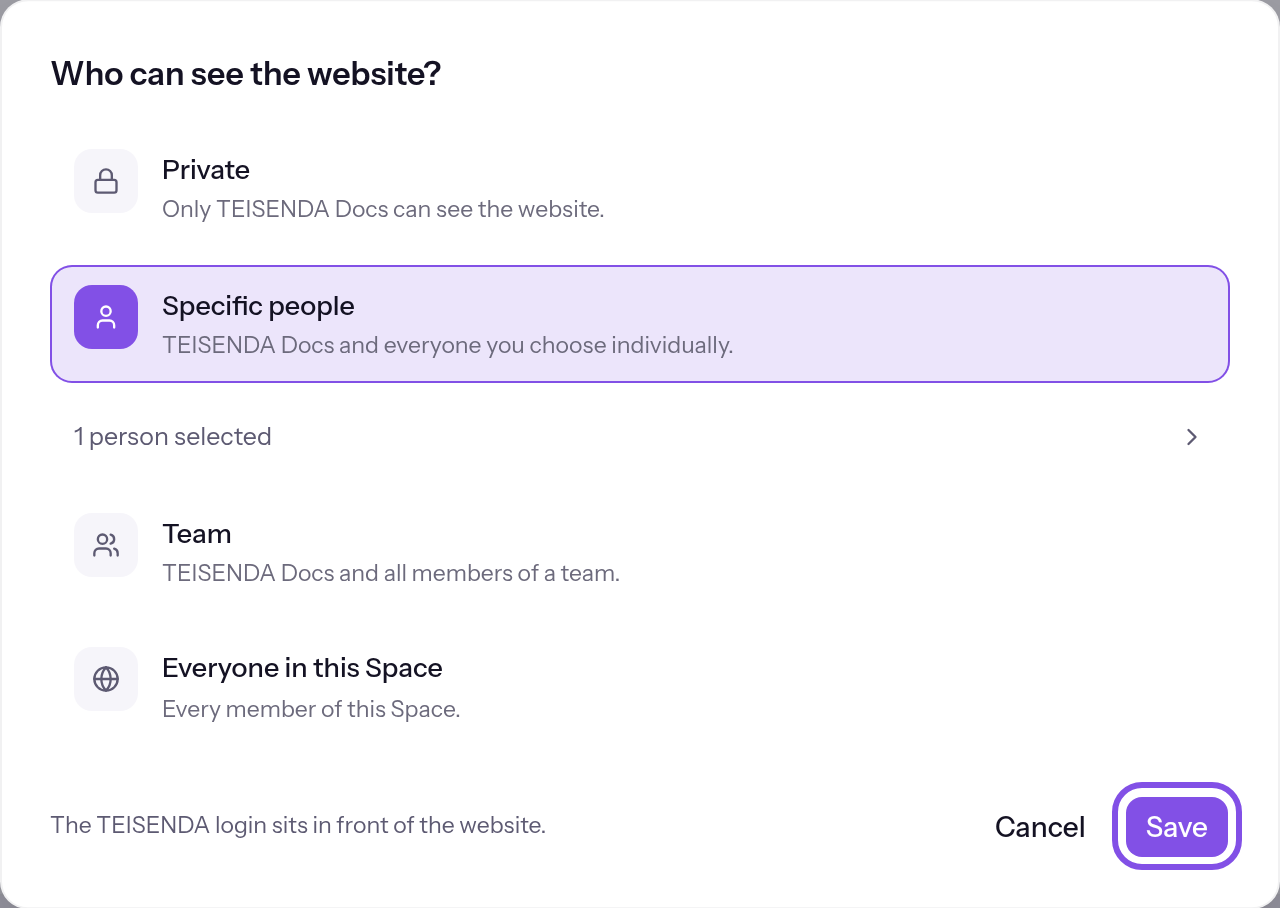
The dialog after selection.
From now on, exactly the chosen members can enter the private website after signing in to TEISENDA.
Good to know
- Only members of the same Space can access a private website: up to 500 individually selected people, or exactly 1 team in the dialog.
- The project creator can always view its private website while they belong to the Space; this is unrelated to Owner. If they are no longer a member, the dialog shows a former member and they lose access. With Private, nobody can then open the website.
If something goes wrong
Choose a team first.
Team is selected but no team is chosen; the save button is disabled and its tooltip states why. Open the team step and choose one, or choose another level.
No teams yet. An Administrator creates teams in Settings under Members.
This is not an error: the Space has no teams. A member with Owner or Administrator creates them: Teams. Until then, choose individual people or everyone in the Space.
Nobody found.
This is not an error: the search finds no member or team, or the Space has no member other than the project creator. Change the search or invite the person first: Invite members.
“You cannot share individually with more than … people.”
You selected more than 500 people individually. Use a team or the level for everyone in the Space.
Right now, the website is shared with people and teams at the same time. After saving, only what you choose here applies.
This is not an error: the saved state shares with both people and teams, or several teams, which the dialog cannot represent. It shows the closest state; the pill reads Selected people and teams. Check and save the selection, or cancel to keep the saved state.
Saved, but not yet transferred to the hosting node
This is not a rejection: the change is saved in TEISENDA, but the hosting node has not accepted it. Visitors still see the previous state. Wait about five minutes or send it yourself: Send the current state again.
For messages such as You don't have permission for that., see Understanding hosting.
More questions about selection
What do the four levels mean?
- Private: only the project creator.
- Specific people: the creator and individually selected members.
- Team: the creator and all members of exactly one Space team.
- Everyone in this Space: every Space member.
What happens to sharing with someone who leaves the Space?
TEISENDA checks membership on every access. The share stays saved but has no effect, and disappears the next time you save the dialog.
What happens if I delete a team the website is shared with?
The team's share disappears with the team. The pill then shows 0, and only the project creator can enter.
Does someone get a message when I share a website with them?
No. TEISENDA notifies nobody: someone receiving access gets no email.
How a member opens a private website
Note
You have a TEISENDA account and belong to the project's Space; any role is sufficient.
The website is shared with you: you created the project, it is shared with everyone in the Space, you are individually selected, or you belong to the chosen team. Your browser accepts cookies.
-
Open the website address
Open the project's TEISENDA address or a custom domain in your browser.
-
Sign in to TEISENDA
If you are not signed in in this browser, sign in to TEISENDA. With email and password, enter your second factor if enabled; you then return automatically.
The website opens in this browser.
Good to know
- If someone loses access through a change outside hosting, such as leaving the Space or a team, an existing session may continue for about five minutes. TEISENDA rejects new access immediately.
- Only browsers can enter a private website, not link previews or feed readers.
If something goes wrong
This link is incomplete or invalid. Open the website again.
You opened TEISENDA's access-check page directly, for example from a bookmark. Its title is Link incomplete. Open the website's own address again.
This account doesn't have access to this website. Ask the person who set it up, or sign in with a different account.
The page is titled No access and names the account you are signed in with. It cannot view this website for one of these reasons:
- It does not belong to the Space.
- The website is not shared with it.
- No website exists under this hostname.
- The website is now public.
TEISENDA does not say which reason applies. Ask the person who set up the website to share it with you, or sign in with another account.
Access can't be checked right now. Please try again in a few minutes.
The page is titled Access isn't possible right now. The hosting node did not respond to TEISENDA during the check. Try again in a few minutes.
More questions about visits
How long does a visitor stay signed in to a private website?
The hosting node keeps the session for 12 hours and renews it while the visitor uses the website. After at most 7 days, it asks TEISENDA again. The visitor notices only if they are no longer signed in there.