
Manage members
Find members and their roles, search for people and remove memberships here.
On this page
Open User management and read the list
Note
You are Owner or Administrator in a Space that has been set up. A Space is a shared workspace in the app.
-
Open the entry in settings
Open the Space settings and choose Members. Members opens.
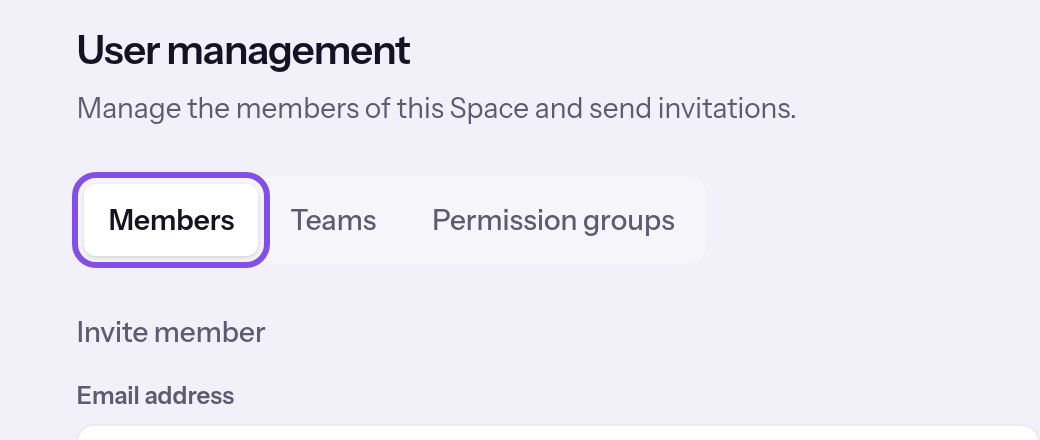
The page's first tab is open. -
Read the member list
The list shows name, email address, role and the joining date under Member since.
-
Search for a member
Enter a name or email address under Search and click Search.
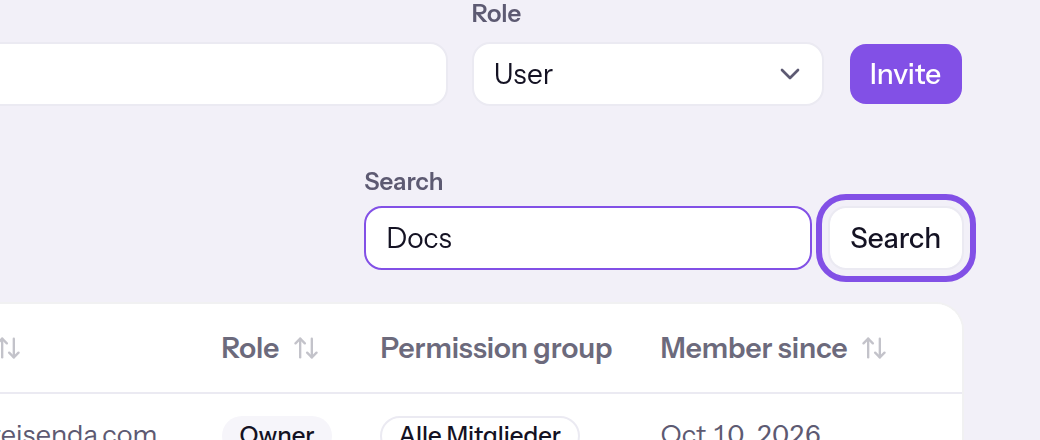
The search form above the list; the search button is highlighted. -
View pending invitations
Under Pending invitations, you see pending invitations with address, role and status. You can resend or revoke them.
You can see your Space's members and pending invitations.
Good to know
- Your row has you, and only members you may change have a three-dot button at the end of their row.
- Click a column heading to sort the list; click again to reverse the order.
- Each page lists 25 members; with more, Previous and Next appear.
If something goes wrong
The Space's home address opens instead of User management
You have User or Read-only in the Space; these roles cannot access User management, and the app shows no message. Contact a member with Owner or Administrator.
More questions about the member list
What is a membership?
A membership links your account to a Space and carries a role. It begins when you create a Space or accept an invitation. Leaving or removal keeps the account and content. Deleting a Space removes its memberships; deleting an account removes that account's memberships. Changes apply from the next request in the app.
Remove a member
Note
You have Owner or Administrator in the Space, and it has been set up.
The member is someone else. End your own membership under Leave a Space.
The member's role ranks no higher than yours: as Administrator, you cannot remove Owner; as Owner, you can remove another member with that role.
Warning
The person needs a new invitation to return. After accepting, they rejoin their previous teams.
-
Choose the remove entry
Open the three-dot menu in the member's row and choose Remove member. Remove from Space names the person.
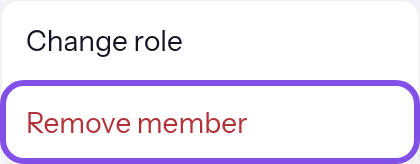
A member's menu; the remove entry is highlighted. -
Confirm removal
In the dialog, click Remove member. Cancel closes the dialog without removing anyone.
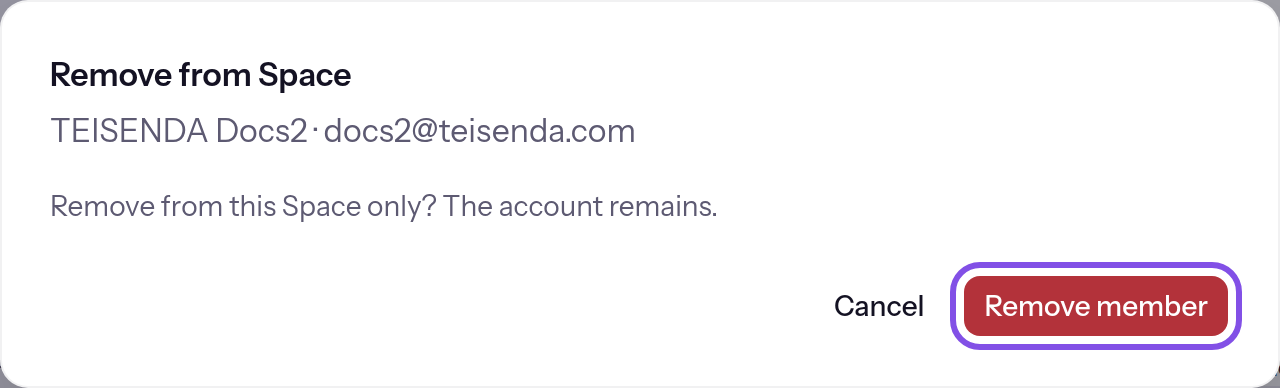
The removal dialog; the remove button is highlighted.
The person is no longer listed and cannot open the Space's pages from their next request onwards.
Good to know
- The person's TEISENDA account and anything they created in the Space remain, and they receive no email or notification.
- They can no longer open the Space's private websites on a new visit, but an existing visit continues until the next sync, at most about five minutes (see Visibility).
- Their team entries remain and count again only when they rejoin (see Teams).
- A Connector connection belonging to their account no longer lists the Space (see Connector permissions).
If something goes wrong
You are not allowed to perform this action.
The member's role ranks above yours, you do not or no longer have Owner or Administrator, or the request failed for another reason. Reload the page. Anything requiring Owner must be done by a member with that role.
Member not found.
The person no longer belongs to the Space: they left or were removed after the page loaded. Close the dialog and reload the page.