
Change or set a password
Change your password in your personal settings. If you currently sign in only through Google or Microsoft, you can set one there for the first time. A Space is a shared workspace in the app.
On this page
Change your password
Note
Your account has a password and you know it. If you have lost it, reset it using a link.
Warning
After the change, TEISENDA signs you out everywhere, including the browser you are currently using.
-
Enter your current and new passwords
In your personal settings, open Security. In Change password, enter your current password under Current password and the new one under New password and Confirm new password.
-
Change the password
Click Change password. The card now shows Password changed and the Go to sign in button.
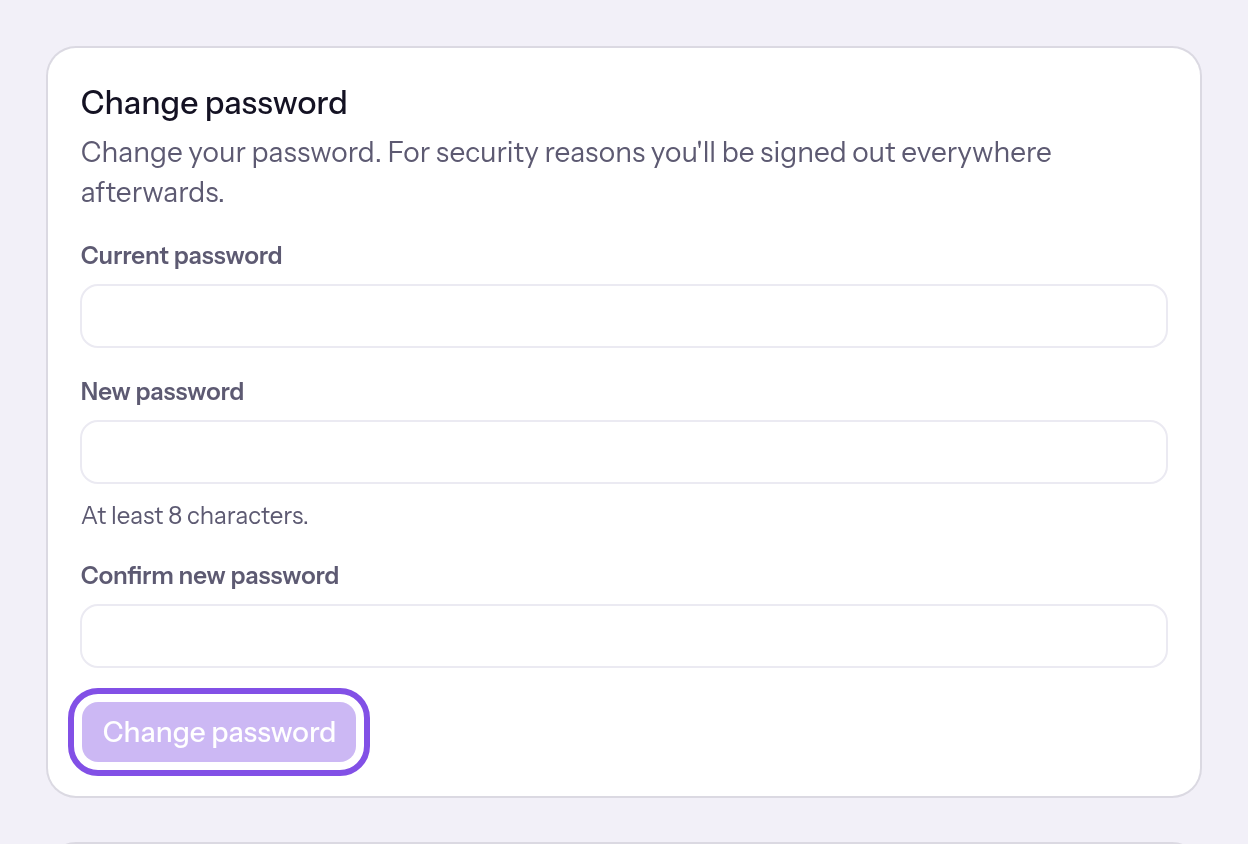
The password change card with its change button.
Click Go to sign in and sign in with the new password. Two-factor sign-in remains enabled; Your password was changed confirms the change.
If something goes wrong
The passwords don't match.
The two new-password fields do not contain the same text. Enter the same password in both.
The password must be at least 8 characters.
The new password has fewer than 8 or more than 200 characters. Choose a password of 8 to 200 characters.
The current password is incorrect.
The current password is incorrect. TEISENDA has changed nothing and signed nobody out. Enter your current password.
No password is set for this account.
Your account has no password. Normally the page then shows the setup card. Reload the page and set a password.
Too many attempts. Please try again in … minutes.
There have been too many attempts to change or set a password in the current hour: 10 for your account or 15 from the same IP address. Rejected attempts also count. Wait for the stated number of minutes.
Set a password for the first time
An account that signs in through Google or Microsoft can get its own password this way.
Note
Your account has no password yet because you created it through Google or Microsoft, or used a provider to accept an invitation.
-
Enter the password
In your personal settings, open Security. In Set up a password, enter the password in New password and repeat it in Confirm new password. The hint is At least 8 characters.
-
Set the password
Click Set up password. The page reloads, and the card now offers to change the password.
You can now also sign in with an email address and password. Your sessions remain active; Password set up confirms setup.
Good to know
- With a password, you can also change your address, verify your identity, set up two factors and delete your account or a Space.
If something goes wrong
The passwords don't match.
The two fields do not contain the same text. Enter the same password in both.
The password must be at least 8 characters.
The password has fewer than 8 or more than 200 characters. Choose a password of 8 to 200 characters.
A password is already set for this account.
Your account already has a password, for example because you set one in another browser. Reload the page; it will offer to change the password.
Too many attempts. Please try again in … minutes.
These are the same counters as for changes: 10 attempts to change or set a password per account and 15 per IP address are allowed in an hour. Wait for the stated number of minutes.