
Take a website offline and bring it online
Take your website offline temporarily and bring it back later.
On this page
Note
You need Owner, Administrator or User in the Space. A Space is a shared workspace in the app.
Take the website offline
-
Click the take-offline button
On the project page, click Take offline under Danger zone. A confirmation opens.
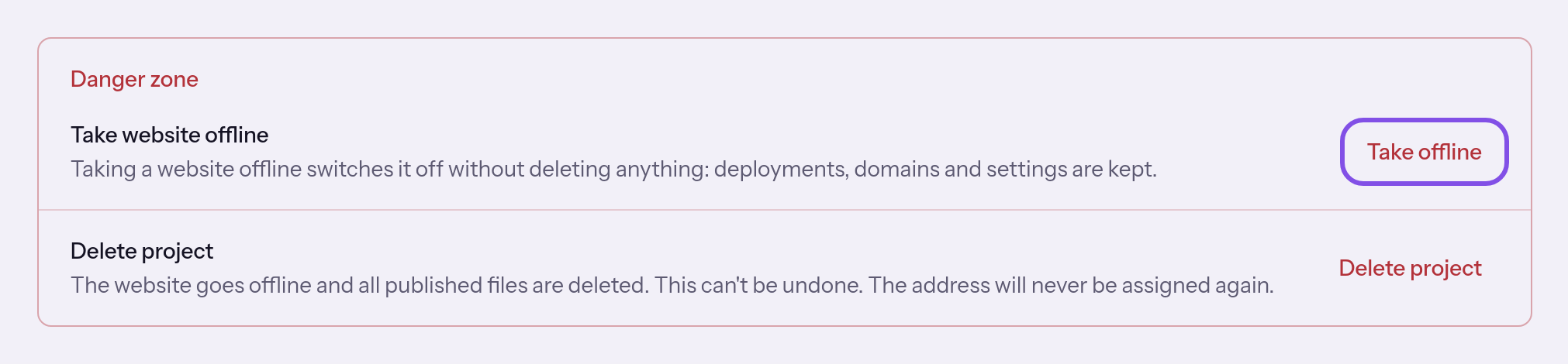
The first row in Danger zone. -
Confirm
In the confirmation, click Take offline. The website is offline and The website is offline appears. Cancel closes the confirmation and keeps it online.
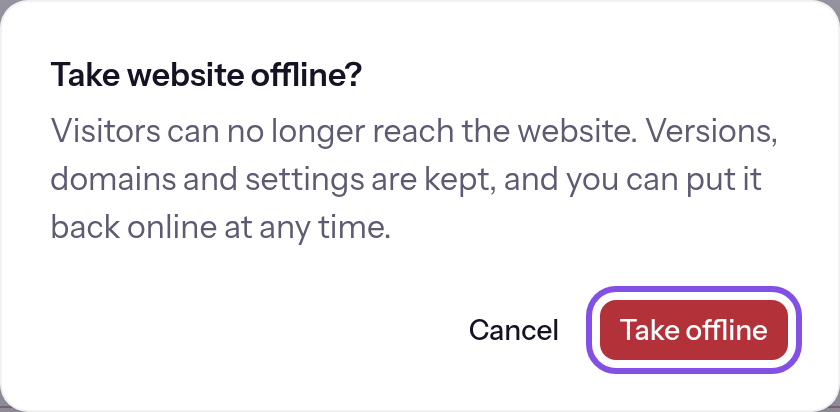
The confirmation; the confirm button is highlighted.
Visitors see a neutral page at every project address. The project page shows Offline.
Good to know
- Offline deletes nothing. Versions and backups, the published version, custom domains and certificates, redirects and visibility remain.
- You cannot upload an archive while the project is offline.
If something goes wrong
Saved, but not yet transferred to the hosting node
This is not a rejection: the change is saved in TEISENDA, but the hosting node has not accepted it. Visitors still see the previous state: the website still responds. Wait about five minutes or send it yourself: Send the current state again.
For messages such as You don't have permission for that., see Understanding hosting.
Bring the website online again
The project is offline: Offline appears beside its name.
-
Click the bring-online button
Under Danger zone, click Put back online. The website is back online appears without confirmation.
The website is accessible again, with its previous version, visibility, domains and redirects.
If something goes wrong
Saved, but not yet transferred to the hosting node
This is not a rejection: the change is saved in TEISENDA, but the hosting node has not accepted it. Visitors still see the previous state: the website does not respond yet. Wait about five minutes or send it yourself: Send the current state again.
For messages such as You don't have permission for that., see Understanding hosting.
More questions about bringing a website online
Why does my website not respond although the project is online?
The switch only ends this project's offline state. All websites may also be unavailable if the Space is blocked or paused after a subscription ends. In those cases, Offline is absent; a paused Space has a separate notice.