
Buy and remove additional packages
Packages raise the project, domain or storage limits of a purchased Max subscription.
On this page
Available packages
| Package | Adds per unit | Monthly price per unit, excluding tax |
|---|---|---|
| Add-on pack +5 websites | 5 projects (“websites”) and 5 custom domains | 10.00 |
| Add-on pack +10 GB storage | 10 GB storage | 5.00 |
- The price is the same for both commitments and currencies. You can purchase up to 20 units of each package.
- Packages are available only with a purchased Max subscription, not Max without a subscription. They end with the subscription.
Buy a package
Note
You have Owner or Administrator in the Space. A Space is a shared workspace in the app.
Max comes from a running, active subscription: not past due and not cancelled.
-
Open the purchase dialog
In Add-on packs, click Add pack in the package's row; if units are already purchased, the button reads Add another pack.

The purchase button in the package's row. -
Choose the quantity
Select the number of units under Number of packs and click Continue. Check the amount due today and the future monthly price.
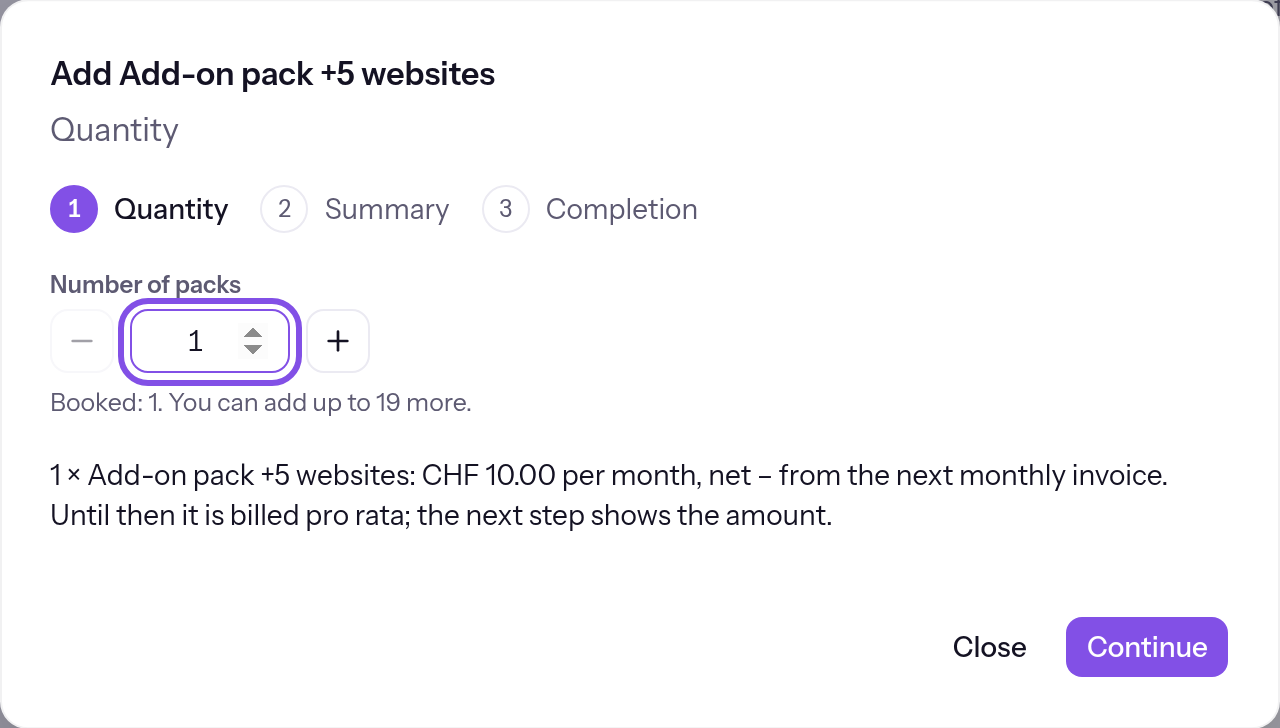
The quantity field. -
Buy the package
Click the “Buy and pay: …” button showing the amount. TEISENDA charges the stored payment method.
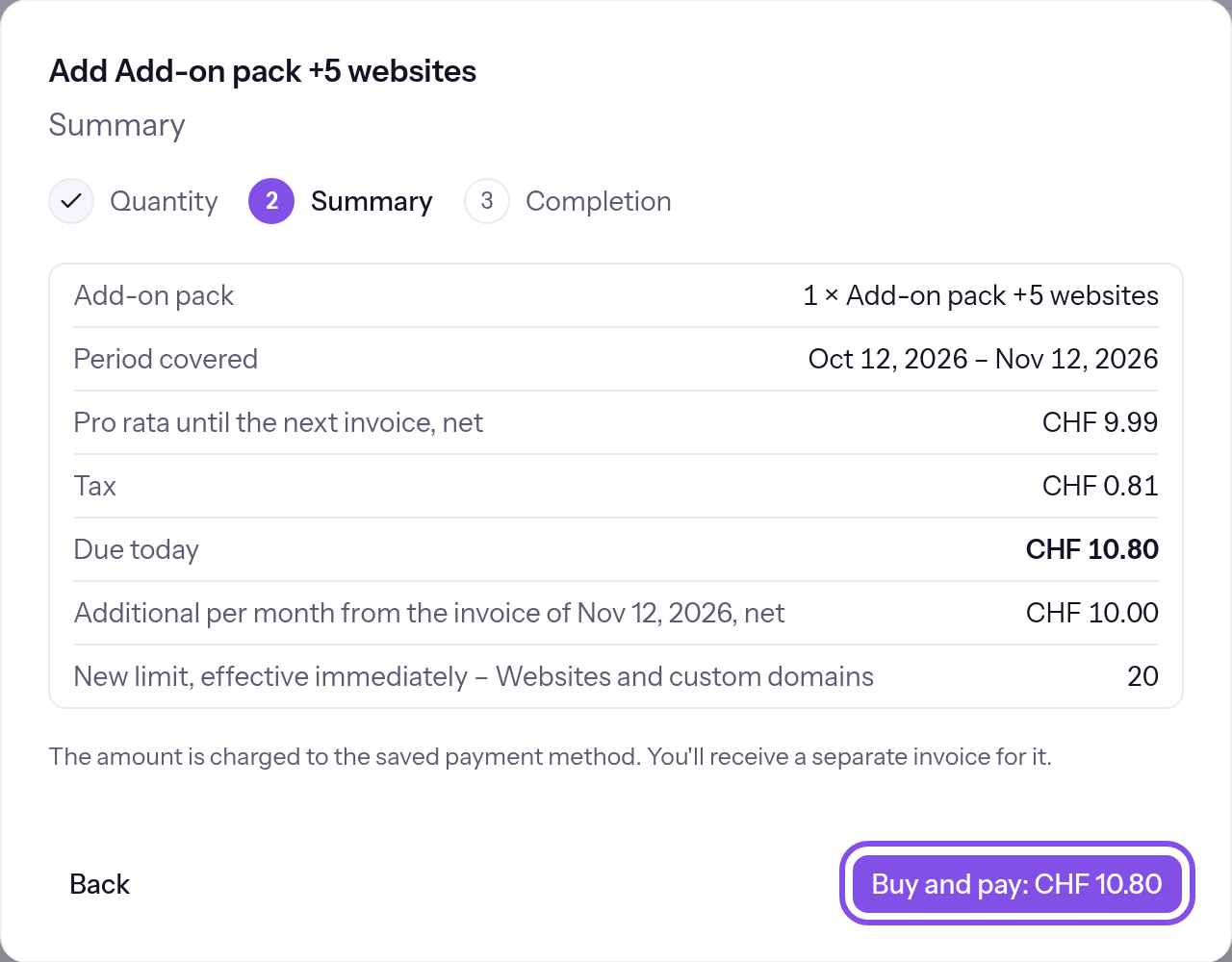
The purchase button.
The third step shows Purchased, and the higher limit applies immediately.
Good to know
- The higher limit never applies without payment: if the charge fails or waits for your bank, the subscription remains as it was.
- An unfinished purchase blocks further purchases and removals. After 30 minutes without payment, TEISENDA discards it; a paid purchase remains purchased. See Complete or cancel a purchase.
If something goes wrong
Only Owners and Administrators can add and remove packs.
You have User or Read-only and the rows have no buttons. A member with Owner or Administrator must buy or remove packages.
“Packages for more websites and storage can be added to a purchased …”
The Space has no running Max subscription: it is on Free, has Max without a subscription, or the subscription has ended. The section shows this sentence without rows. Purchase Max first: Purchase the Max plan.
Add-ons can't be bought right now: no payment provider has been set up.
No payment provider is configured here. You cannot change this; purchasing is unavailable.
The first payment is still outstanding.
The subscription's first payment is pending. Complete it first.
The payment is overdue. Settle it first – then add-ons can be bought.
The subscription is past due. Pay first: Change your payment method.
The subscription is cancelled. Withdraw the cancellation first.
The subscription is cancelled. Withdraw cancellation first: Withdraw a cancellation.
An add-on purchase has been started and isn't complete yet.
A purchase is started but unfinished. Complete or cancel it: Complete or cancel an unfinished purchase.
A removal is scheduled for this add-on pack. Withdraw it first – then add-ons can be bought.
A removal is scheduled for this package. Withdraw it first: Withdraw a removal.
A change to the subscription is being scheduled right now. Please try again in a few minutes.
TEISENDA is passing a scheduled subscription change to the payment provider. Try again in a few minutes.
Nothing can be bought right now with the billing details on file. Check the country and VAT ID in the billing details.
TEISENDA cannot currently sell with the saved billing details. The reason is the country or a VAT ID the register has not, or not yet, verified. Check the country and VAT ID in the billing details.
“You cannot purchase more than … units of this package.”
This quantity would take the subscription above 20 units of the package. Choose fewer units.
There's no price for this add-on pack right now.
TEISENDA has no price for the package today. Contact support.
The next invoice is being created right now. Please try again in a few minutes.
The billing month has ended and the next invoice is being created. Try again in a few minutes.
“The prorated amount until the next invoice is too small to charge. You can purchase the package from …”
The prorated amount until the next invoice is too small to charge. This happens in the last days of a billing month. Purchase from the next invoice date.
The payment provider isn't responding right now. Please try again in a moment.
The payment provider did not respond to the preview. Try again a little later.
The status has changed in the meantime. Reload the page.
The status changed after you loaded the page. Reload it.
The card was declined. Nothing was booked and nothing was charged.
The bank declined the card. TEISENDA has purchased nothing and charged nothing. Save another card and purchase again: Change your payment method.
The payment wasn't confirmed. Nothing was booked and nothing was charged.
The bank did not confirm payment. TEISENDA has purchased nothing and charged nothing. Purchase again, using another card if needed.
The add-on purchase wasn't completed. Nothing was booked and nothing was charged.
You did not complete the purchase within its time limit. TEISENDA has purchased nothing and charged nothing. Purchase again.
Your subscription changed before the payment was confirmed. The add-on purchase wasn't booked; nothing was charged.
The subscription changed before payment was confirmed. TEISENDA has purchased nothing and charged nothing. Purchase again.
The payment provider didn't accept the add-on purchase. Nothing was booked and nothing was charged.
The payment provider did not accept the purchase. TEISENDA has purchased nothing and charged nothing. Try again later.
Your bank requires a confirmation that can't be given here. Nothing was booked and nothing was charged. Add a different card.
Your bank requires confirmation that cannot be given here. TEISENDA has purchased nothing and charged nothing. Save another card: Change your payment method.
More questions about purchases
What does a package cost in the first month?
TEISENDA charges a prorated amount for the time until the next monthly invoice immediately, on a separate invoice. From the next monthly invoice, each unit costs its full monthly price.
What does the third step show?
- Purchased with what TEISENDA purchased and charged.
- Payment is being confirmed while payment confirmation is pending.
- Your bank's window if it requires confirmation.
- Not purchased with the reason and, after a declined card, a link to the payment method.
- Not yet clear if the payment provider did not respond. The dialog then offers no second attempt.
Which emails do I receive after purchase?
TEISENDA sends them to the invoice email address in billing details, using the stored invoice language. Without billing details, nothing is sent. No email is sent for a pending or failed purchase.
- “… – additional purchase confirmed: …”, once per order, when the purchase is paid and effective.
- “Your invoice … from TEISENDA” with the PDF, when TEISENDA delivers the prorated invoice. A purchase invoice becomes an invoice document only when paid. It goes to the address on that document.
Complete or cancel an unfinished purchase
Note
You have Owner or Administrator in the Space, and a purchase has started but has no result yet.
-
Complete or cancel the purchase
In An add-on purchase has been started and isn't complete yet, click Complete purchase. Cancel purchase instead discards an unpaid purchase; one that has since been paid remains.
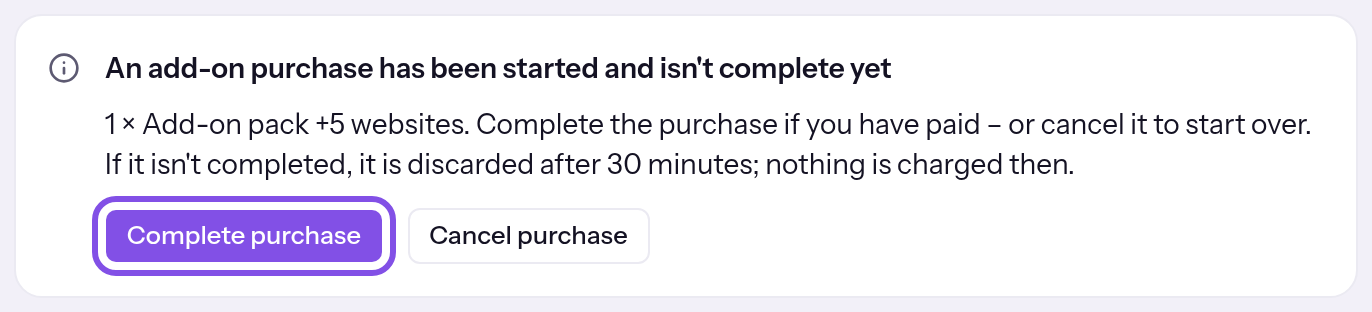
The notice with its button.
The unfinished purchase has a result and the notice disappears. You can buy and remove packages again.
If something goes wrong
The payment hasn't arrived yet.
Payment has not arrived yet and the notice remains. Wait and try again, or cancel the purchase.
The status couldn't be checked just now. Try again in a moment.
TEISENDA could not read the status. Try again a little later.
Remove a package
Note
You have Owner or Administrator in the Space, and at least one unit of the package is purchased.
The subscription is active and your current usage fits within the lower limit.
-
Open the package menu
In the purchased package's row, click the menu button and choose Remove.

The menu in the package's row. -
Choose the quantity
Under Number of packs, choose the number of units to remove and click Continue. Check the effective date and lower limit.
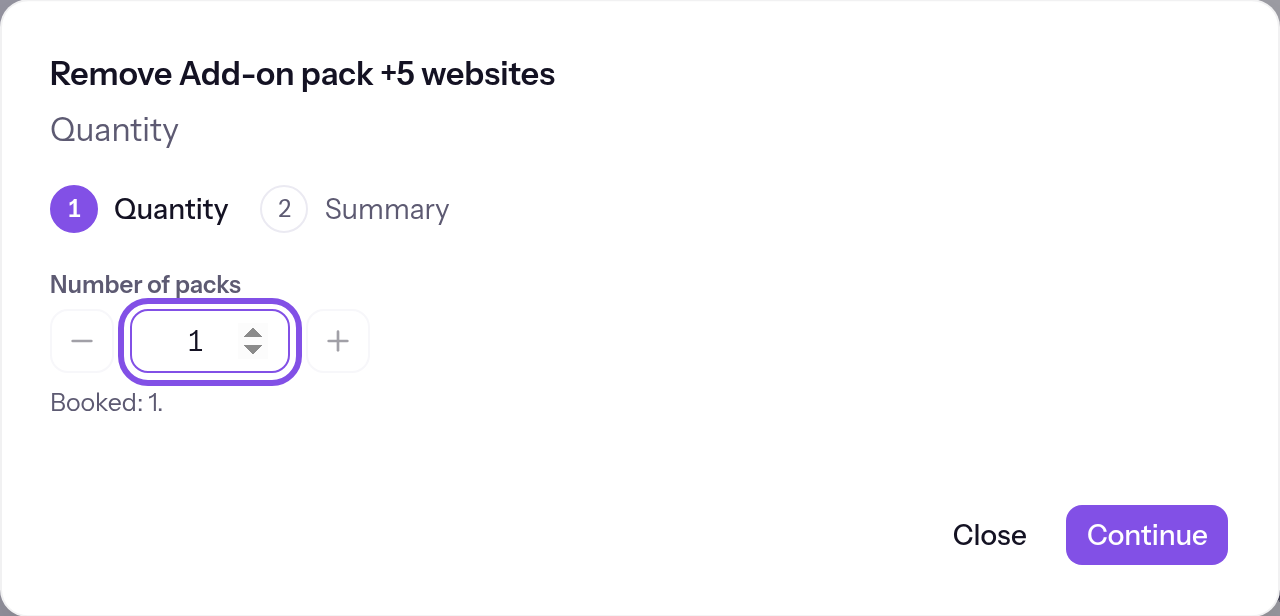
The quantity field. -
Schedule removal
Click Schedule removal.
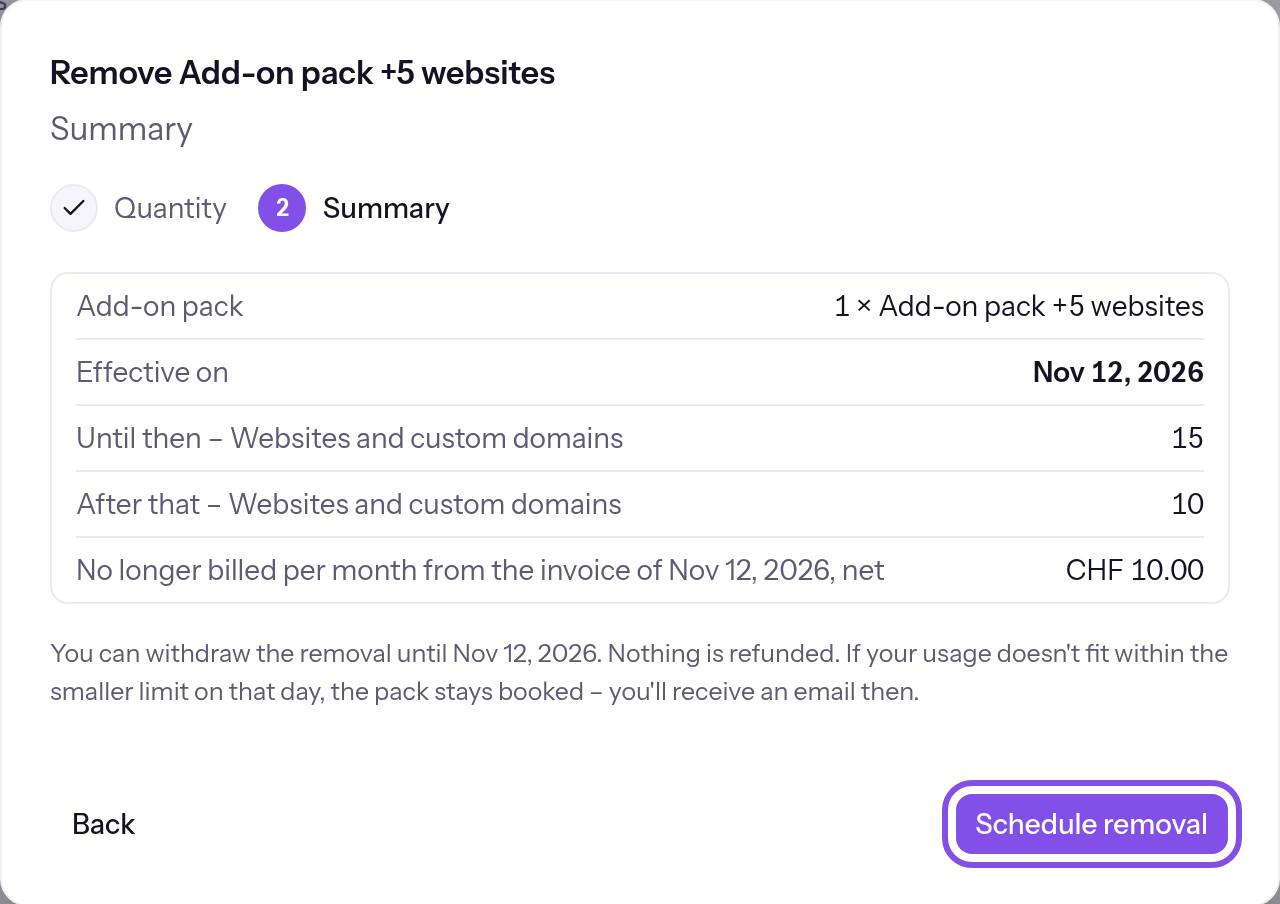
The schedule-removal button.
A message states the date, and Usage shows when the lower limit applies.
Good to know
- The units remain purchased and the higher limit applies until the billing month ends. TEISENDA makes no refund or prorated adjustment.
- Reduce usage before the final hour of the billing month: TEISENDA starts checking 60 minutes before it ends whether usage fits the lower limit.
- If it does not fit, the package remains purchased and you receive an email.
- Removal does not move to the next month; schedule it again.
If something goes wrong
“Your usage does not fit within the lower limit: … Reduce it first.”
Usage does not fit the lower limit; the message gives the figures. Reduce usage first: delete projects or domains, or free storage.
Your usage can't be read right now. Please try again in a moment.
TEISENDA could not read usage and schedules nothing without it. Try again a little later.
A removal is already scheduled for this add-on pack. Withdraw it to remove a different quantity.
A removal is already scheduled for this package. Withdraw it to schedule a different quantity.
An add-on purchase has been started and isn't complete yet. Complete it first.
A purchase is started but unfinished. Complete it first: Complete or cancel an unfinished purchase.
The subscription is cancelled; its add-on packs end with it. To remove a pack earlier, withdraw the cancellation first.
The subscription is cancelled, and packages end with it. To remove a package earlier, withdraw cancellation first: Withdraw a cancellation.
The payment is overdue. Settle it first – then add-on packs can be removed.
The subscription is past due. Pay first: Change your payment method.
The first payment is still outstanding.
The first payment is pending. Complete it first.
The next invoice is being created right now. Please try again in a few minutes.
The next invoice is being created. Try again in a few minutes; removal then takes effect at the end of the new month.
The subscription doesn't name a billing month right now. Please try again in a few minutes.
The subscription currently gives no billing month. Try again in a few minutes.
The status has changed in the meantime. Reload the page.
The status changed after you loaded the page. Reload it.
Nothing can be removed right now: no payment provider has been set up.
No payment provider is configured here. You cannot change this; removal is unavailable.
More questions about removal
Which removal emails do I receive?
TEISENDA sends them to the invoice email address in billing details, using the stored invoice language. Without billing details, none is sent.
- “… – removal scheduled: … on …”, while your removal is scheduled.
- “… – removal effective: …”, when TEISENDA performs it.
- “… – removal not performed: …”, if usage did not fit the lower limit when checked during the final 60 minutes of the billing month; the email gives the figures at that time.
- “… – removal withdrawn: …”, after you withdraw it.
Withdraw a removal
Note
You have Owner or Administrator in the Space, and a package removal is scheduled for a date not yet reached.
-
Open the confirmation
Click Withdraw removal for the scheduled removal. The confirmation explains that the units continue to be charged.
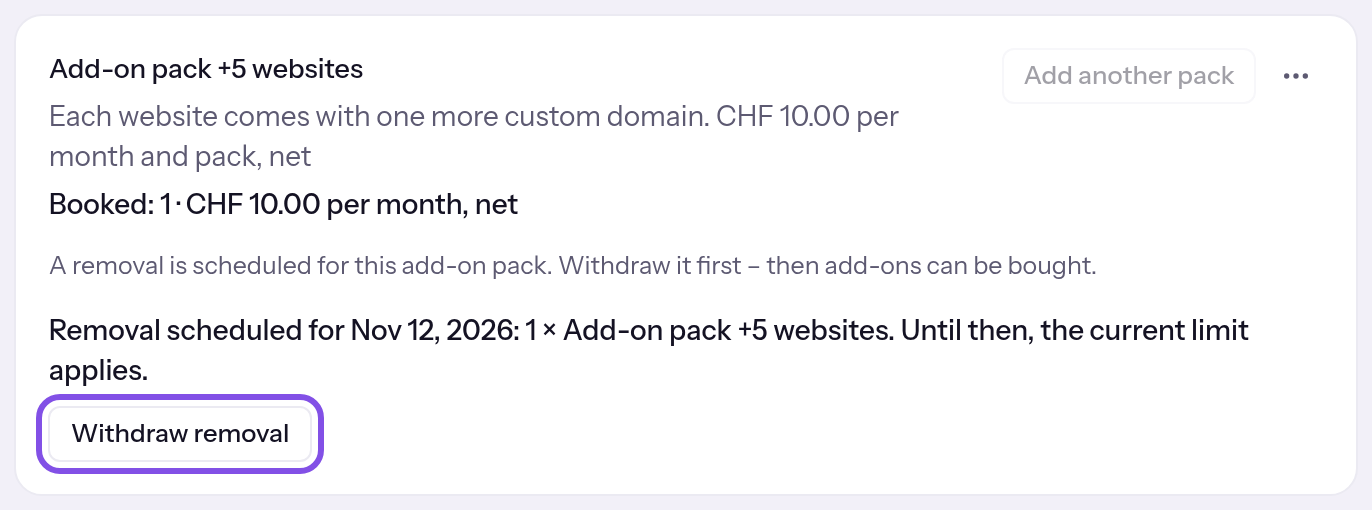
The scheduled removal's row. -
Confirm withdrawal
Click Withdraw removal in the confirmation. A message shows The removal has been withdrawn.
All package units remain purchased and the higher limit continues to apply.
If something goes wrong
No removal is scheduled for this add-on pack.
No removal is scheduled for this package anymore. Reload the page.
The next invoice is being created right now – whether the removal already applies will be clear in a few minutes. Please try again then.
The next invoice is being created, and in a few minutes it will be clear whether removal has taken effect. Try again then.
The subscription is being changed right now. Please try again in a moment.
Another subscription change is in progress. Try again a little later.
The payment provider isn't responding right now. Nothing was withdrawn. Please try again in a moment.
The payment provider did not respond, and TEISENDA withdrew nothing. Try again a little later.
The status has changed in the meantime. Reload the page.
The status changed after you loaded the page. Reload it.
You don't have permission to do this.
TEISENDA rejected withdrawal because you are not Owner or Administrator, or your session expired. Sign in again as Owner or Administrator.