
Delete a project
Remove a project with all versions, domains and shares.
On this page
Permanently delete a project and its website. To make the website temporarily unavailable, take it offline.
Note
You need Owner, Administrator or User in the Space. A Space is a shared workspace in the app.
Warning
You cannot recover a deleted project. There is no restoration period.
Delete the project
-
Click the delete button
On the project page, click Delete project under Danger zone. The confirmation dialog opens.
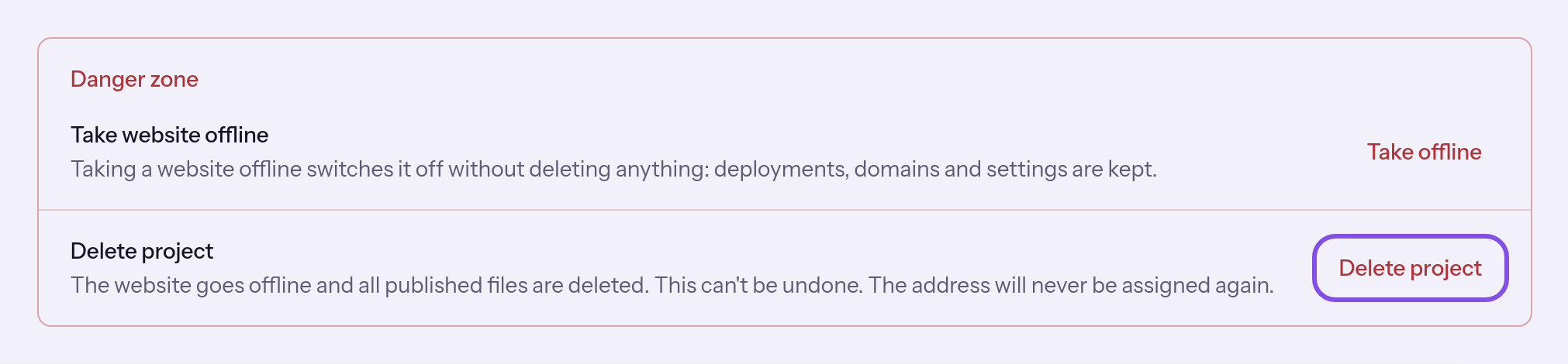
The second row in Danger zone. -
Type the name and confirm
Type the project name exactly and click Delete permanently. Use Cancel to cancel.
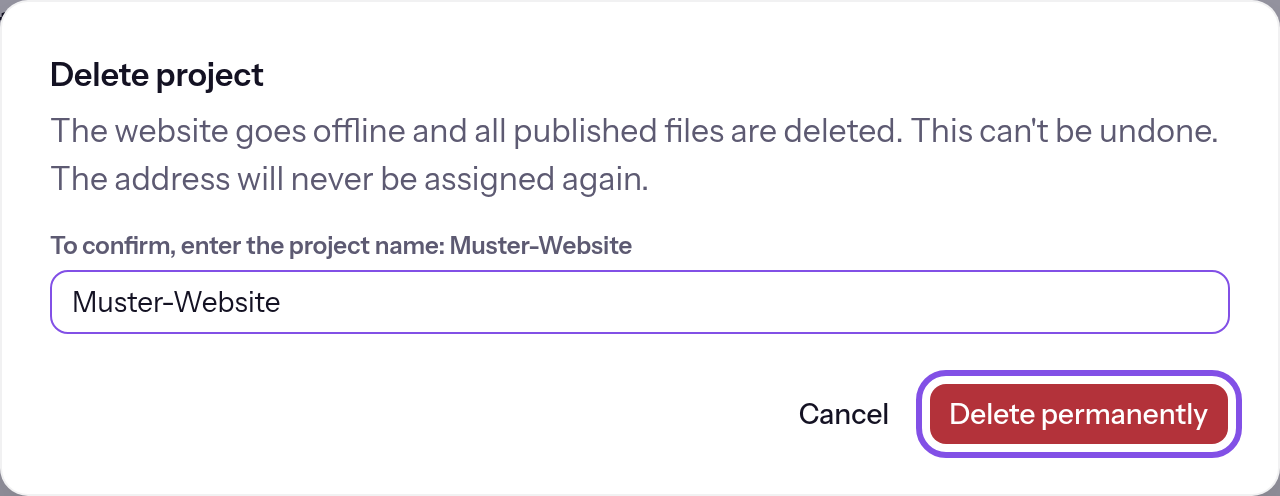
The name is entered; the permanent-delete button is highlighted.
Project deleted appears, the browser returns to the project list and the website is offline.
What is removed with the project
- all its versions, including backups, and their files on the hosting node
- its custom domains and certificates
- its redirects
- its visibility shares
Good to know
- TEISENDA never reassigns the TEISENDA address or project number. Custom domains become available to other projects once the hosting node confirms deletion.
- Deletion does not restore a used publication.
If something goes wrong
The name you entered doesn't match the project name.
The typed name does not match the project name, and the button stays disabled until it does. Case matters; leading and trailing spaces do not. Type the name exactly as shown in the project header.
Project deleted. It is still being removed from the hosting node.
This is not a rejection: the project is deleted in TEISENDA, but the hosting node has not confirmed deletion. The website may still respond briefly. You need do nothing: the app automatically retries node deletion about every five minutes.
For messages such as You don't have permission for that., see Understanding hosting.