
Change your payment method
Replace your subscription's card or confirm a pending payment with your bank.
On this page
Replace the card
Note
You have Owner or Administrator in the Space. A Space is a shared workspace in the app.
The Space has a Max subscription that has not ended.
-
Start the change
On Billing, click Change payment method below the subscription or in the failed-payment notice.
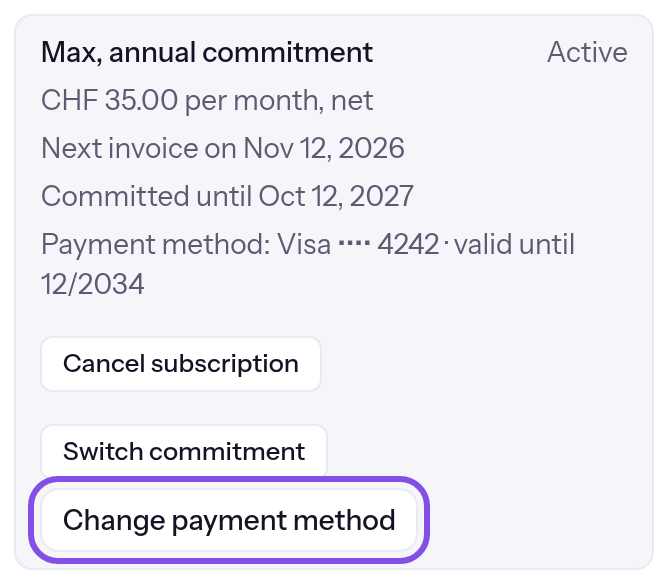
The change-payment-method button. -
Save the card
Enter the new card and click Save card. If the provider's page opens, save the card there; any outstanding amount is then collected.
The new card appears below the subscription. If the outstanding amount is also paid, the subscription is active again; after returning from the provider, The payment has been received. Your plan continues as before., The card was declined. Please add a different payment method. or The payment is still being confirmed. Reload the page in a moment. shows the status.
If something goes wrong
Only Owners and Administrators can change the payment method.
TEISENDA rejected the change because you are not Owner or Administrator, or your session expired. Sign in again as Owner or Administrator.
No subscription is running that a payment method would apply to.
No subscription requiring a payment method is running. Purchase first: Purchase the Max plan. Enter the card when paying.
The payment provider isn't responding right now. Please try again in a few minutes.
The payment provider did not respond. Try again in a few minutes.
The payment method can't be changed right now.
The change failed for another reason. Try again later; if it persists, contact support.
The card couldn't be saved. Check your details or use a different card.
The payment provider did not accept the card in the dialog; the dialog shows its message if supplied. Check the details or use another card.
Payment declined
The payment provider declined the new card for the outstanding amount; the dialog shows The card was declined. Please add a different payment method. Save another card.
The card fields can't be loaded here. You can change the payment method on Stripe's page.
The card fields could not load in the dialog. A button then leads to the payment provider's page.
Owners and Administrators of this Space can change the payment method.
You have User or Read-only and see the failed-payment notice; this sentence replaces the button. A member with Owner or Administrator must change the payment method.
More questions about the card
Which email arrives before the card expires?
TEISENDA sends “The card for … expires – valid until the end of …” once per card and expiry date, within the preceding 30 days. It is sent only for an active subscription that TEISENDA would charge afterwards, to the invoice email address in billing details, using the stored invoice language. Without billing details, none is sent.
What happens after a failed charge
After a failed monthly charge, your subscription is past due. The payment has failed on billing and hosting pages gives its end date if payment does not arrive.
As Owner or Administrator, you can change the card or complete a pending bank confirmation there. Other members see Owners and Administrators of this Space can change the payment method..
Days count from the start of the billing month whose charge failed:
| Day | What happens |
|---|---|
| 0 | The charge fails. |
| 7 | A reminder states the subscription's end date. |
| 11 | The final reminder is sent. |
| from 14 | TEISENDA ends the subscription due to non-payment: never earlier than 3 days after the final reminder, and never without it. |
Good to know
- Everything remains online until it ends, and Max still applies.
- If a charge succeeds or TEISENDA collects the amount using a new card, the subscription is active again and these consequences no longer apply.
- While past due, you cannot change the commitment, buy or remove packages, or delete the Space.
- If your bank awaits confirmation, confirm payment or save another card before the subscription ends.
- If the subscription ends due to non-payment, TEISENDA pauses all the Space's websites: What happens when a subscription ends.
More questions about failed charges
Which emails do I receive after a failed charge?
TEISENDA sends them to the invoice email address in billing details, using the stored invoice language. Without billing details, none is sent. Only the email for the current stage is sent:
- “Payment for … failed”: days 0 to 6; if the bank awaits your confirmation, “Please confirm payment for …” instead.
- “Payment pending: … ends on …”: days 7 to 10.
- “Final reminder: … ends on …”: from day 11.
- “Payment for … received”: the subscription is active again.
- “… has ended, your websites are going offline”: the subscription ended due to non-payment.
Confirm a payment with your bank
If your bank holds a charge until you confirm it, complete confirmation without re-entering the card.
Note
You have Owner or Administrator in the Space.
The subscription is past due and the payment provider reported that the charge awaits your bank's confirmation.
The confirm button is available only if confirmation can appear in a dialog. If it is absent, save the card again: Replace the card.
-
Open the confirmation dialog
In The payment has failed, click Confirm payment. Observe the payment deadline stated there: the pending bank confirmation is not retried automatically.
-
Confirm with the bank
Click Confirm with your bank and confirm in your bank's window. The dialog then shows Payment confirmed or, while payment is pending, Confirmation is being processed.
The outstanding charge is paid, the subscription is active again and the notice disappears. If your bank declines, nothing changes; save another card: Replace the card.
If something goes wrong
Only Owners and Administrators can confirm the payment.
You are not Owner or Administrator, or your session expired. Sign in again as Owner or Administrator.
The bank is no longer waiting for a confirmation. Reload the page – the payment may already be there. Otherwise, add your card via “Change payment method”.
The bank no longer awaits confirmation. Reload the page; if payment has not arrived, save the card again using Change payment method.
The payment provider isn't responding right now. Please try again in a few minutes.
The payment provider did not respond. Try again in a few minutes.
In this environment, the payment can't be confirmed in a window. Add your card via “Change payment method”.
Confirmation cannot appear in a dialog here. Save the card again using Change payment method.
The payment can't be confirmed right now.
Confirmation failed for another reason, for example because the subscription is not past due. Reload the page.
The bank didn't accept the confirmation. Close this window and add a different card via “Change payment method”.
The bank did not accept confirmation. Close the dialog and save another card using Change payment method.
The bank's window can't be loaded here. Add your card again via “Change payment method” instead.
The bank's window could not load. Save the card again using Change payment method.
The confirmation didn't work. Please try again.
Confirmation failed for another reason; the dialog shows the provider's message if supplied. Try again.