
Set up two-factor sign-in
Set up two factors and learn how to regain access if you lose them.
On this page
Protect password sign-in with an additional code from an authenticator app.
Enable two-factor sign-in
Note
You need a password and an authenticator app. If you currently sign in only through Google or Microsoft, set a password first.
Warning
The app shows backup codes exactly once, in step 2. Keep them at that step.
-
Start setup
In your personal settings, open Security. In the Security card, enter your password under Current password and click Enable 2FA.
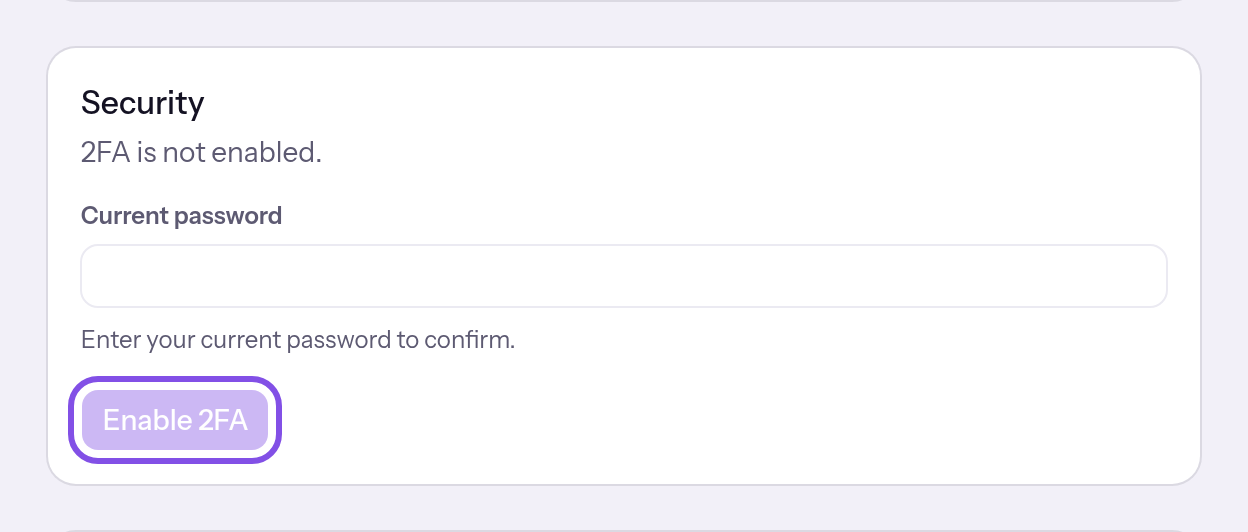
The card with the button that starts setup. -
Scan the QR code and keep the backup codes
Scan the QR code with your authenticator app, or type the key shown under Or enter this key manually:. Keep the backup codes under Backup codes.
-
Enter the first code and enable
Under Confirm setup, enter the six-digit code your authenticator app currently shows and click Activate. If the code matches, the card shows 2FA is enabled.
The app asks for a code from your next password sign-in onwards.
Good to know
- No page shows the backup codes again later. You get new ones only by disabling and enabling again.
- Each backup code works once only.
If something goes wrong
The password is incorrect.
Check your password and enter it again.
The code is invalid or has expired.
The code is incorrect or expired. Enter the code your authenticator app currently shows.
Something went wrong. Please try again.
Check your password first and try again. If your account has none, set one first.
More questions about enabling two factors
What happens when I sign in through Google or Microsoft?
When you sign in through Google or Microsoft, TEISENDA does not ask for an additional code. Your Google or Microsoft account’s sign-in protection applies.
When does the app ask for a code, and where do backup codes work?
The app asks for a code at every password sign-in. You cannot mark a device as trusted, and codes are not available by email or SMS.
A backup code replaces the authenticator code only at sign-in; the identity verification dialog and disabling two factors require an authenticator code. Disabling two factors and a reset by another member delete the stored backup codes.
Disable two-factor sign-in
Note
Two-factor sign-in is enabled, and you have your password and authenticator app available. TEISENDA asks for both and does not accept a backup code here.
-
Enter your password
In your personal settings, open Security. In Security, enter your current password in Current password and click Continue.
-
Enter the code and disable
Enter the six-digit code from your authenticator app in Code and click Disable 2FA. If the password and code match, the card shows 2FA is not enabled.
Your password alone is enough to sign in; the backup codes are deleted. An email with the subject Two-factor authentication disabled reports that you disabled two factors.
If something goes wrong
The password is incorrect.
The password is incorrect. The card returns to the password step and discards the code. Enter your current password and repeat both steps.
The code is invalid or has expired.
The code is not the one your authenticator app currently shows; TEISENDA also rejects a backup code here. Enter the current six-digit code.
Too many failed attempts. Please try again in … minutes.
There have been 5 incorrect entries in this session during the current ten-minute window; incorrect passwords and codes count together. Wait for the stated number of minutes, then try again.
2FA is not active.
Two-factor sign-in is no longer enabled, for example because you disabled it in another browser. Reload the page.
Request a reset if you lose the second factor
Without your authenticator app and a backup code, request a reset. Another member with the Owner or Administrator role in one of your confirmed Spaces must confirm it. A Space is a shared workspace in the app.
Warning
If none of your Spaces has another member with either role, nobody receives a link and the app offers no further step. In this case, contact support.
-
Send the request
At sign-in, click No access to your authenticator app?, enter your account's address in Email address and click Request reset. The page shows If a reset is possible for this address, we have taken the necessary steps. You will be notified once it has been confirmed.
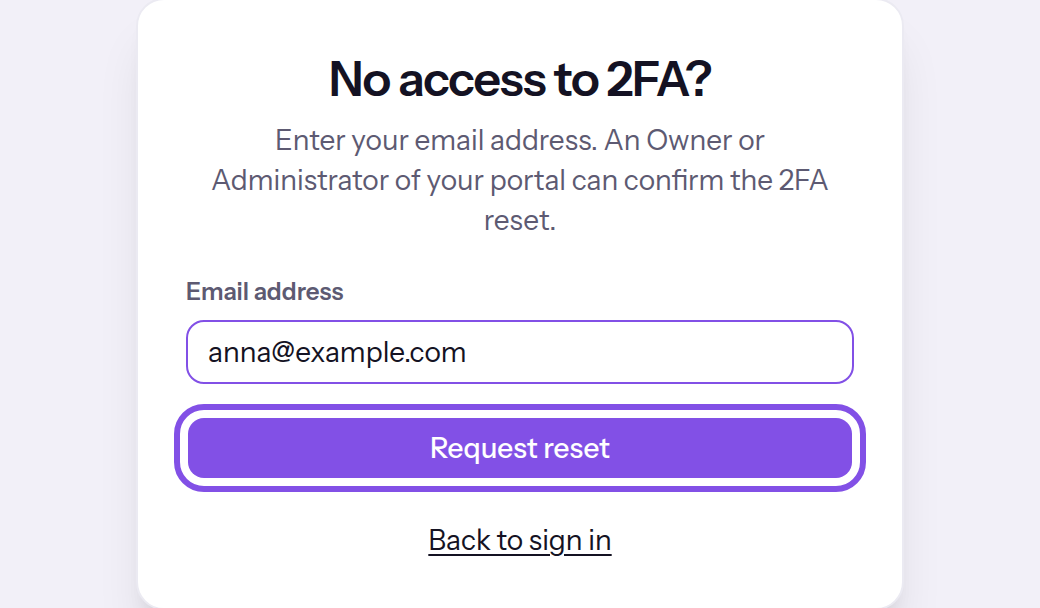
The reset page with the button that sends the request.
The other Owner and Administrator members of your confirmed Spaces receive a link valid for 24 hours. Your second factor remains enabled until confirmation.
If something goes wrong
Too many attempts. Please try again in … minutes.
There have been too many requests in the current hour: 4 for the same address or 15 from the same IP address. Wait for the stated number of minutes; a link already sent remains valid for its 24 hours.
More questions about requesting a reset
Which emails does TEISENDA send when I request a reset?
- To the other members with the Owner or Administrator role: Confirm 2FA reset. The email names you and contains the confirmation link.
- To you: 2FA reset requested for your account. It says someone requested a reset and contains no link.
- TEISENDA sends nothing for an unknown address or an account with two-factor sign-in disabled; the sentence after submitting is always the same.
Confirm a reset for a member of your Space
Use the link in the email to reset a member's second factor.
Note
You have the Owner or Administrator role in a confirmed Space the person belongs to, and you are not the person who requested the reset.
The link is no more than 24 hours old and nobody has confirmed with it yet.
-
Open the link in the email
Confirm 2FA reset names the person and the request time, along with Only confirm if you are sure this person really requested the reset. When in doubt, check with them directly first.
-
Confirm the reset
Click Reset 2FA. If your sign-in or last identity verification is older than 10 minutes, verify your identity first.
The person's second factor is disabled and all their sessions have ended. They sign in with their password alone and receive an email with the subject Your 2FA has been reset.
Good to know
- There is no further confirmation after you click.
If something goes wrong
This link is invalid.
The link is incomplete or unknown, or its account no longer exists. Use the link from the email without changing it. If that does not help, the person must request another reset.
This link has expired. The person must request the reset again.
The link is older than 24 hours. The person must request another reset.
This reset has already been completed.
Someone has already confirmed with this link, possibly another member with either role at the same time. Nothing remains to do; the reset is complete.
You are not authorized to confirm this reset.
You do not have the Owner or Administrator role in any confirmed Space the person belongs to, for example because your role changed since the email was sent or you are signed in with another account. The same message appears if you are the person requesting the reset. Sign in with the account that received the email; if your role changed, another member with either role must confirm.